

Groups & Chat
Mute or leave a group
Stop notifications from a group without leaving it, or leave a group you no longer want.
Mute a group to stop its notifications and stay in it, or leave it. (A few seconds.)
Mute a group
- Tap Groups at the bottom of the app, then tap the group.
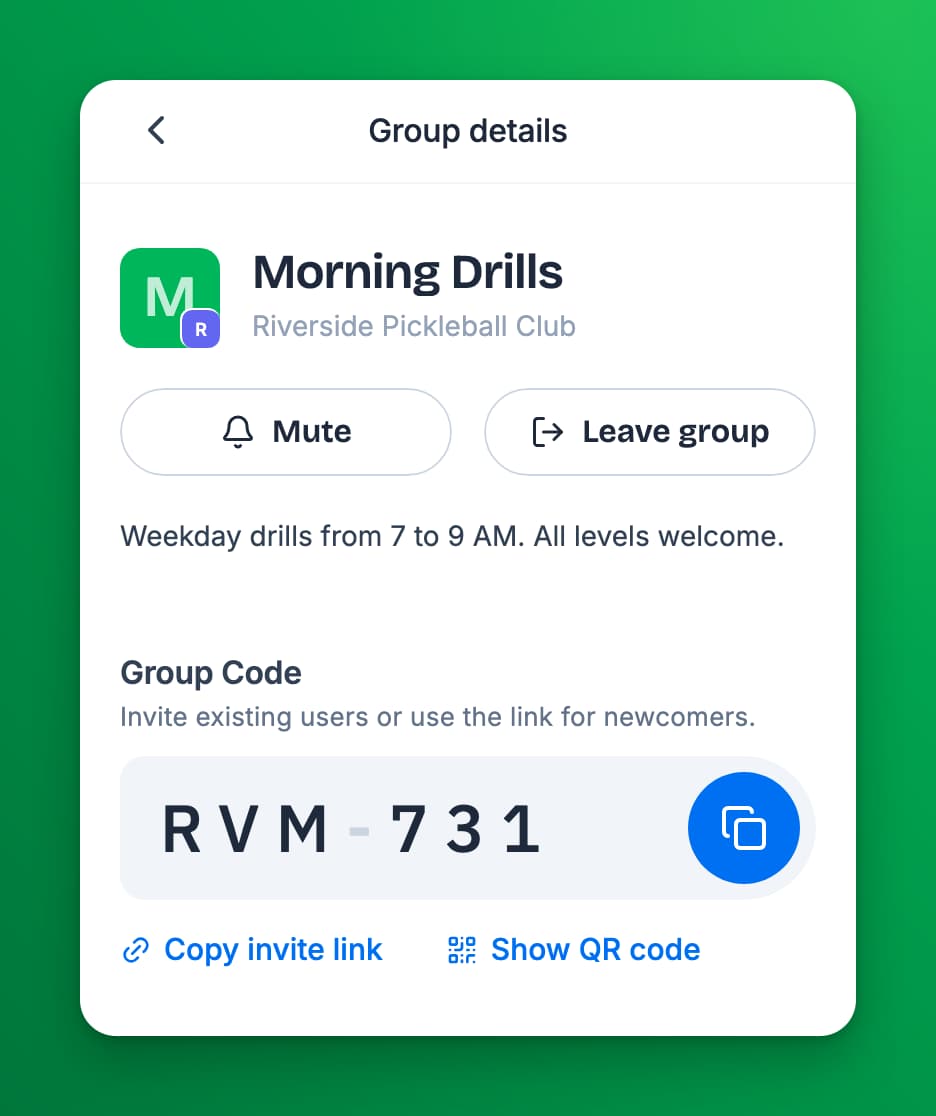
- Tap the settings icon at the top right. Group details opens.
- Tap Mute.
You stay in the group and can read it any time, but you get no push notifications from it, not even when someone mentions you. To turn notifications back on, tap Unmute in the same place.
Leave a group
- Open the group's Group details.
- Tap Leave group.
The group leaves your Groups list.
Can I join again?
- A group that is open to everyone at your club: yes, from Find groups.
- A private group: yes, with its code or invite link.
- If the group's admin blocked you, you cannot rejoin.
You cannot leave every group
- A group you created: you are its admin, so there is no Leave group button. Mute it, or delete it. See Create your own group.
- A direct message: there is no leave. Delete the conversation instead. See Message someone directly and block people.
If something goes wrong
- I still get notifications after muting. Check that the button now reads Unmute. Notifications from other groups and direct messages are separate; mute each one you want quiet.
- I want to turn off all chat notifications. Mute each group and conversation. To stop every notification from the app, turn them off for the app in your phone's settings.