

Families & Group Memberships
The Families & Group Memberships feature allows clubs to group related members together under a single primary membership. This makes it easy to manage family or group plans where one person pays for the membership and others receive the same benefits as dependents.
How Family Memberships Work
- Each family or group has one Primary Member.
- The Primary Member:
- Holds the paid membership
- Is financially responsible for the plan
- Dependent Members:
- Do not pay individually
- Receive the same membership benefits as the Primary Member
- Automatically sync with the Primary Member’s membership status and dates
If the Primary Member’s membership:
- Is canceled or terminated → all dependents lose benefits at the same time
- Is resumed or reassigned → dependents can regain benefits accordingly (you
Creating a Family or Group
-
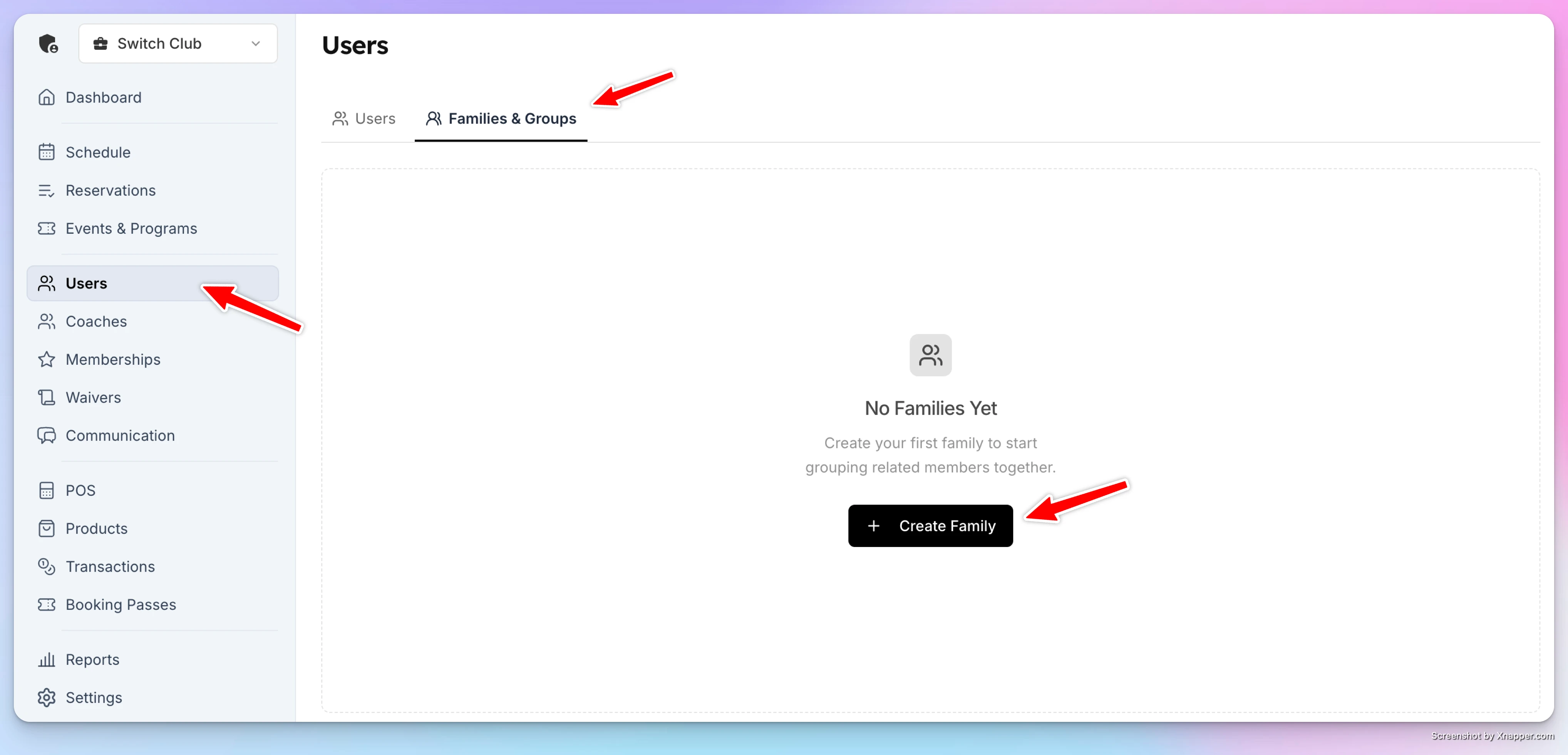
Go to the Users section.
-
Open the Families & Groups tab.
-
Click Create Family.
-
Enter a Family / Group Name and click Create.
At this stage, the family exists but has no members assigned yet.
Assigning the Primary Member
-
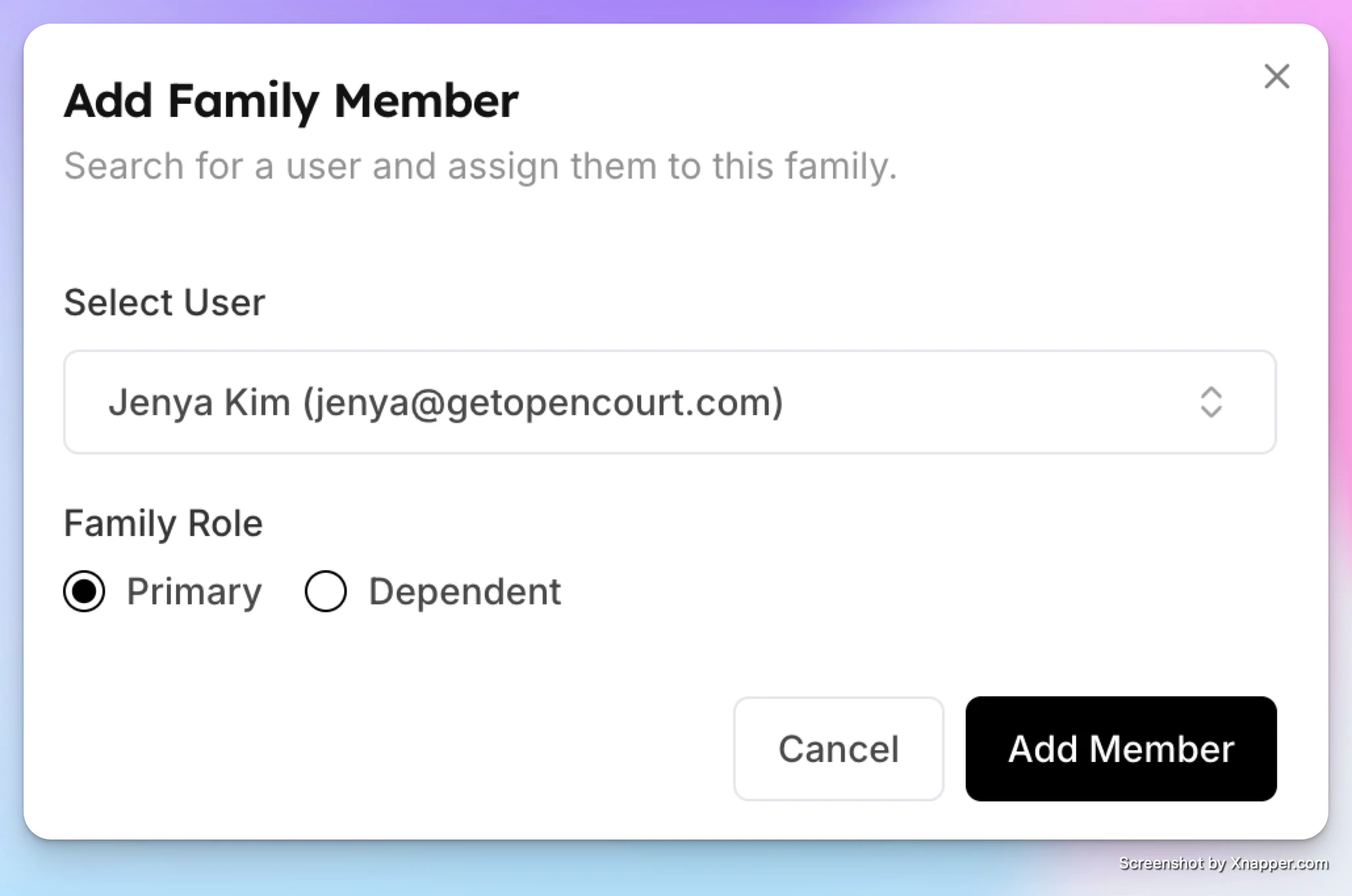
Inside the family, click Add Member.
-
Search for and select the user who will be the Primary Member.
-
Add them to the family.
⚠️ The Primary Member must have a family/group membership plan assigned for dependents to receive benefits.
Adding Dependent Members
-
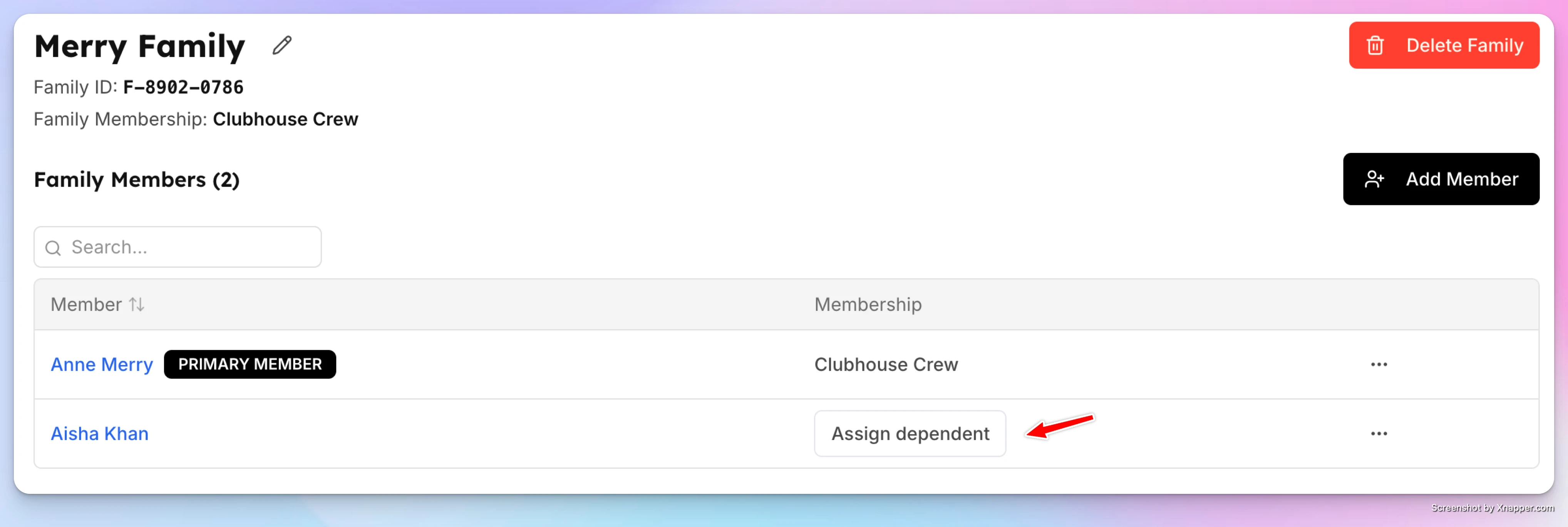
Click Add Member again.
-
Select another user.
-
Click Assign Dependent.
Once assigned:
- The dependent immediately inherits the Primary Member’s membership benefits
- Their membership expiration date matches the Primary Member’s
You can repeat this process to add multiple dependents.
Managing Family Members
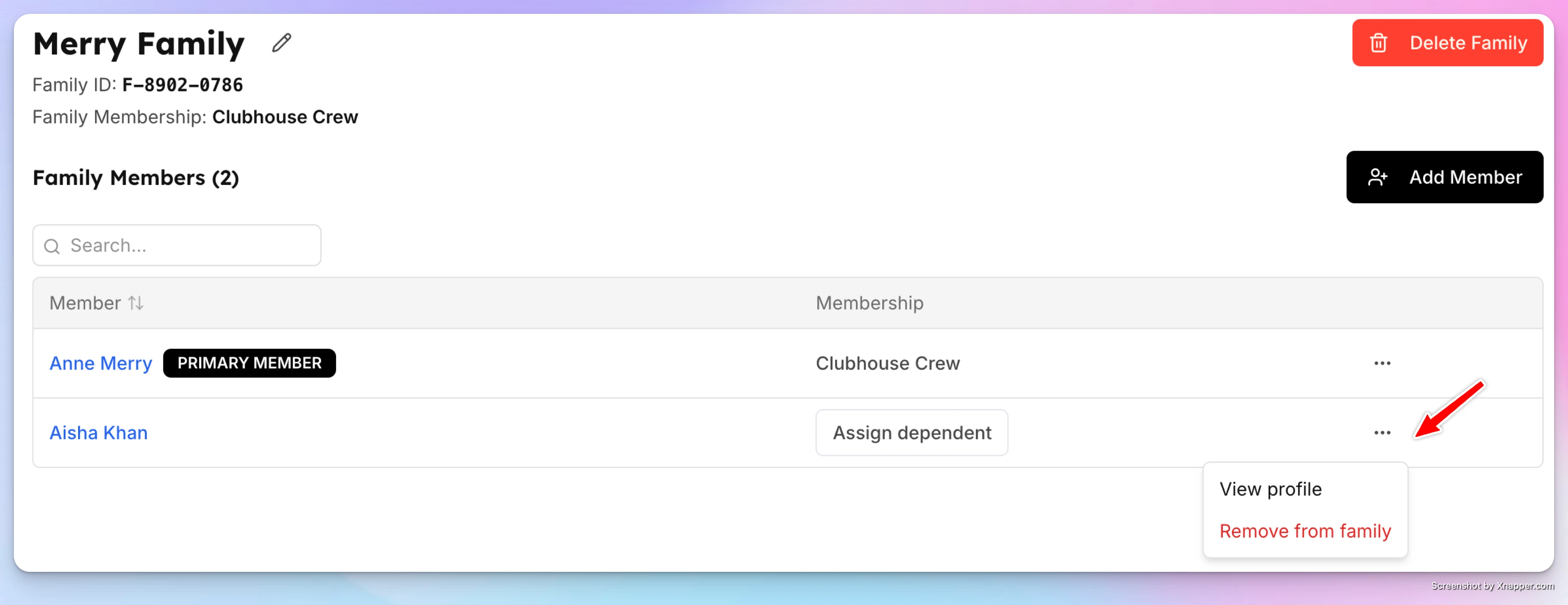
From the Family view, admins can:
-
View all members in the family
-
Remove a member from the family
-
Open a member’s profile
From an individual User Profile, members will see a Family tab showing:
-
Family / group name
-
Their role (Primary or Dependent)
-
Total number of members
-
A Detach from Family option (admin-only)
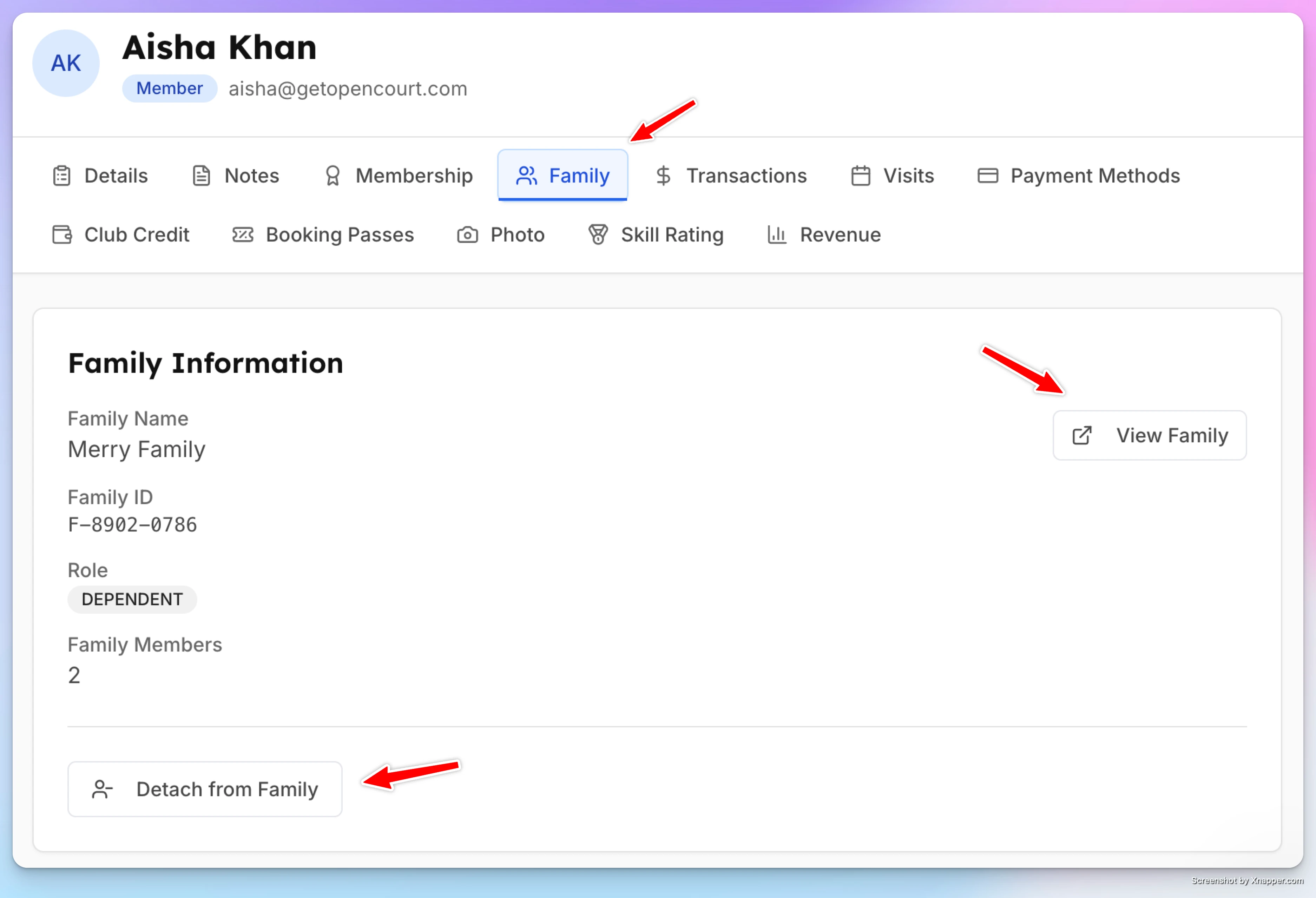
Removing a member from the family immediately removes their dependent benefits.
Membership Sync Rules
- Dependents always follow the Primary Member’s membership status
- If the Primary Member:
- Cancels or loses membership → dependents become non-members
- Changes membership → dependent benefits update accordingly
- Dependent membership expiration dates always match the Primary Member’s expiration date
When to Use Families & Groups
- Family memberships (parents + children)
- Couples or household memberships
- Group or team-based memberships
- Any plan where one person pays and others share access
The Families & Group Memberships feature simplifies group-based billing and benefit management, ensuring everyone stays in sync with the Primary Member’s membership status.
Freezing a Membership
The Freeze Membership feature allows clubs to temporarily pause a member’s membership without canceling it. This is useful when members go on vacation, take a short break, and they don't want to lose their spot and get on the waitlist or pay initiation fee again.
Creating and managing a family account
Learn how both users and club admins can create and manage a family account, add family members, and control how family benefits are shared. This article gives a quick overview of what each side can do and how family accounts work.