

Creating Events with Divisions
The Event Divisions feature lets you organize participants into groups within the same event—such as men’s and women’s brackets for a tournament, or different skill level brackets. This is especially useful when you want balanced participation or specific limits for each group.
How to Create an Event with Divisions
- Start a New Event as usual
- Go to Events & Programs and click Create Event.
- Enter your event name and choose the event type.
- Set capacity (total number of participants) and pricing as usual
- Enable Divisions
-
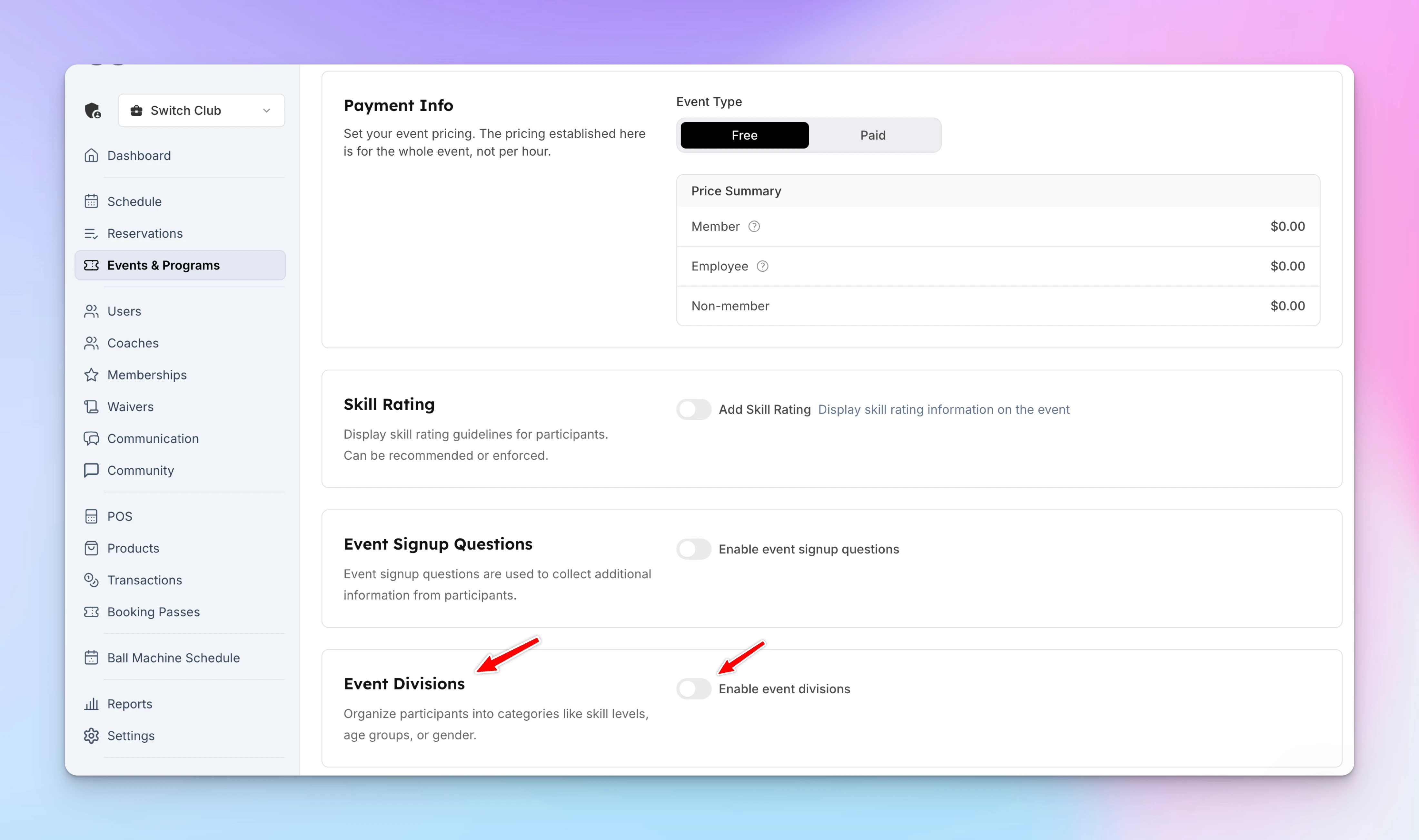
Under the Pricing block, you’ll see a section for Event Divisions.
-
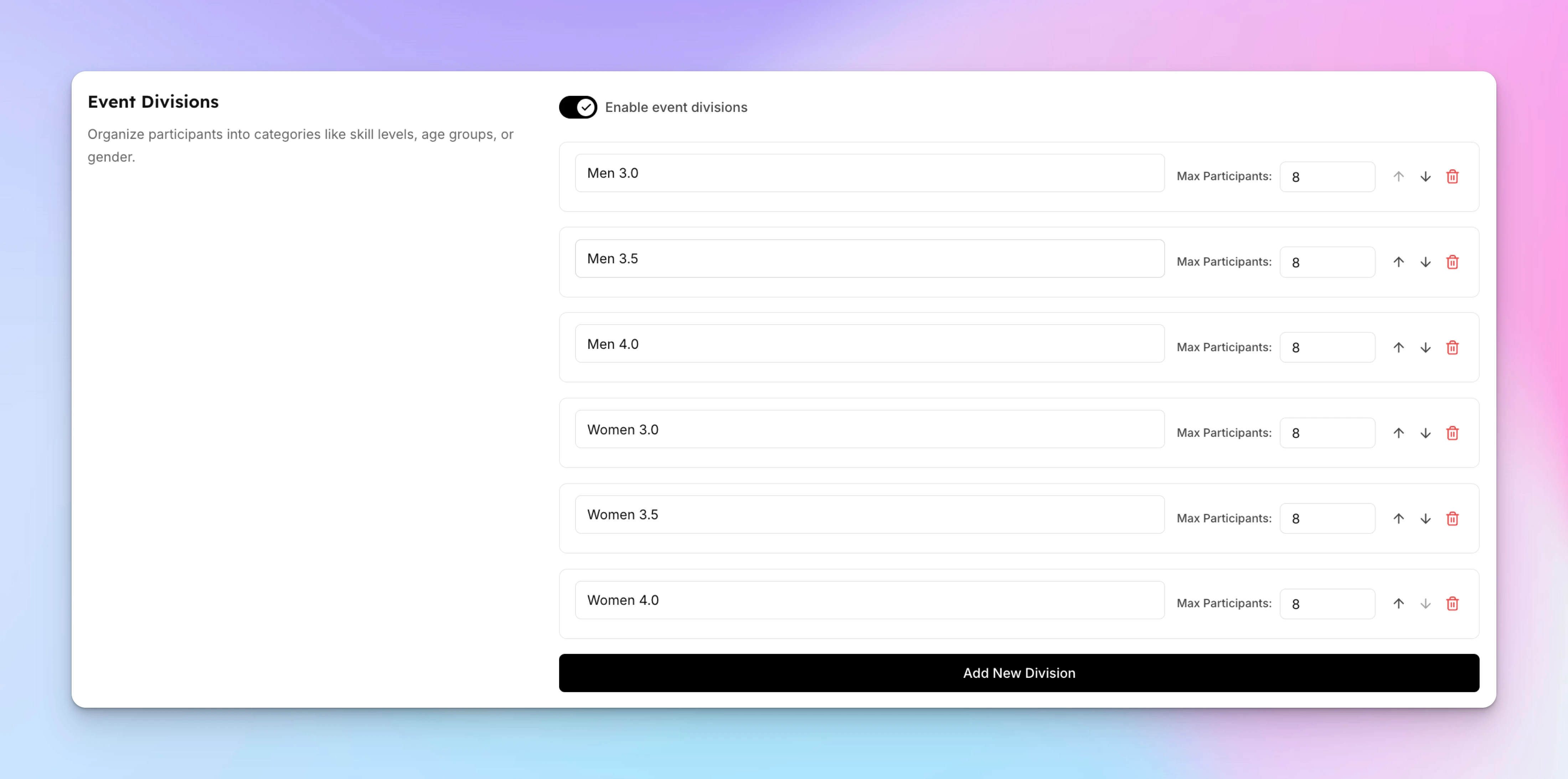
Toggle Event Divisions on and click Add New Division.
-
Create each division and set participant limits for each.
-
- Add Time Slots
- Choose the date and time for your event, then click Create Event.
Managing Participants as an Admin
-
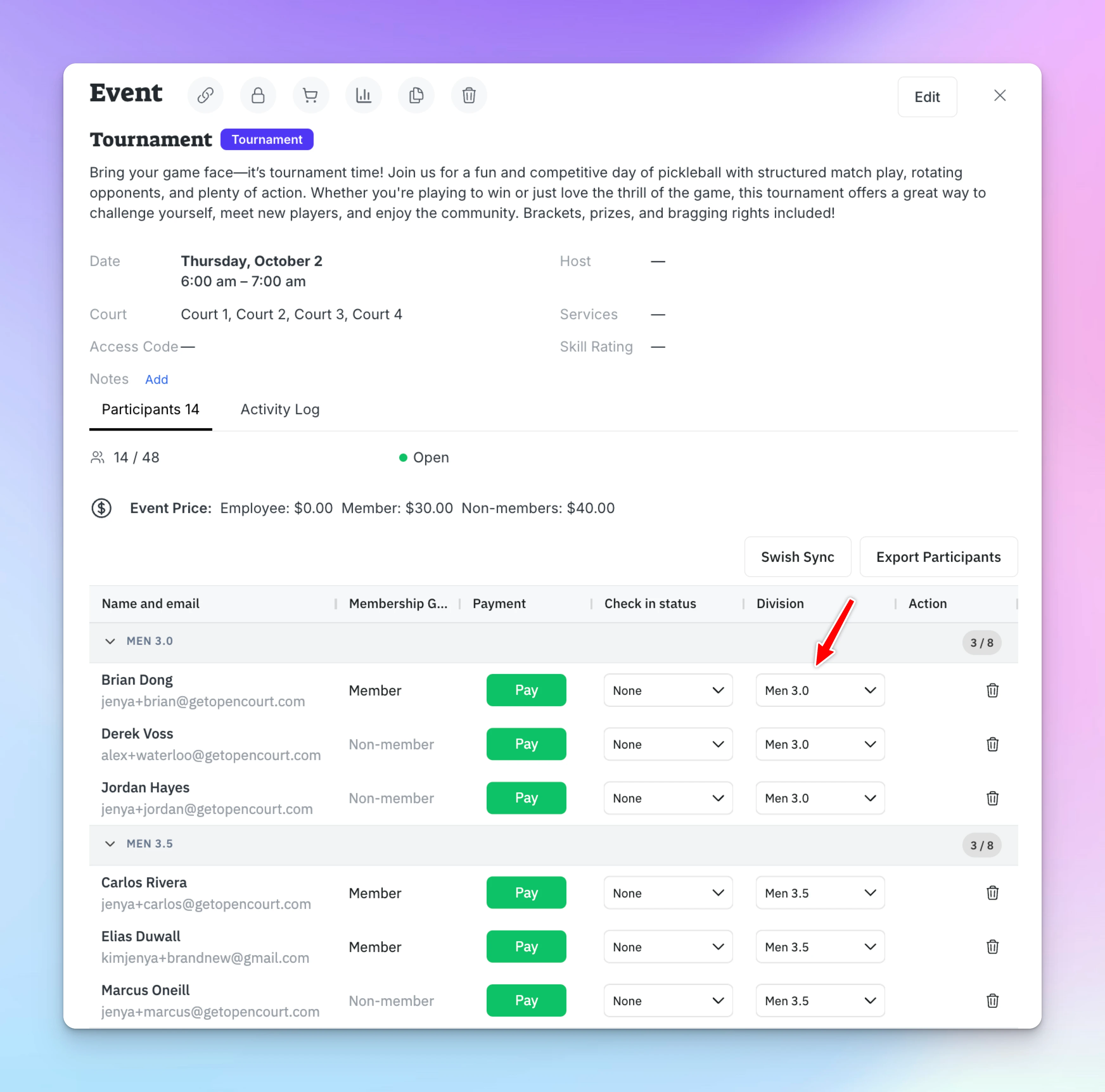
When adding participants, you’ll now see a Division column with a dropdown menu.
-
Select which division each participant belongs to.
User Experience
-
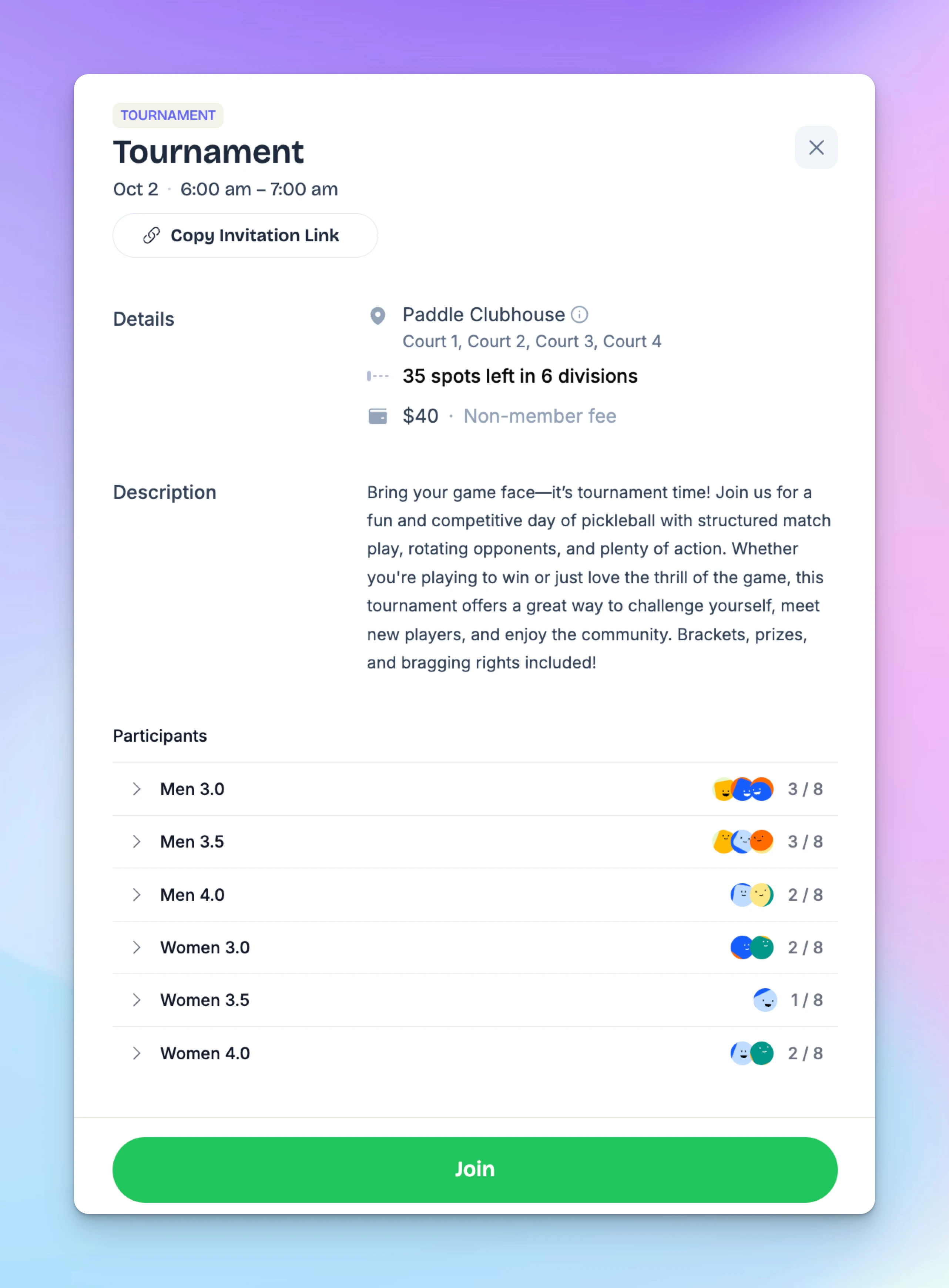
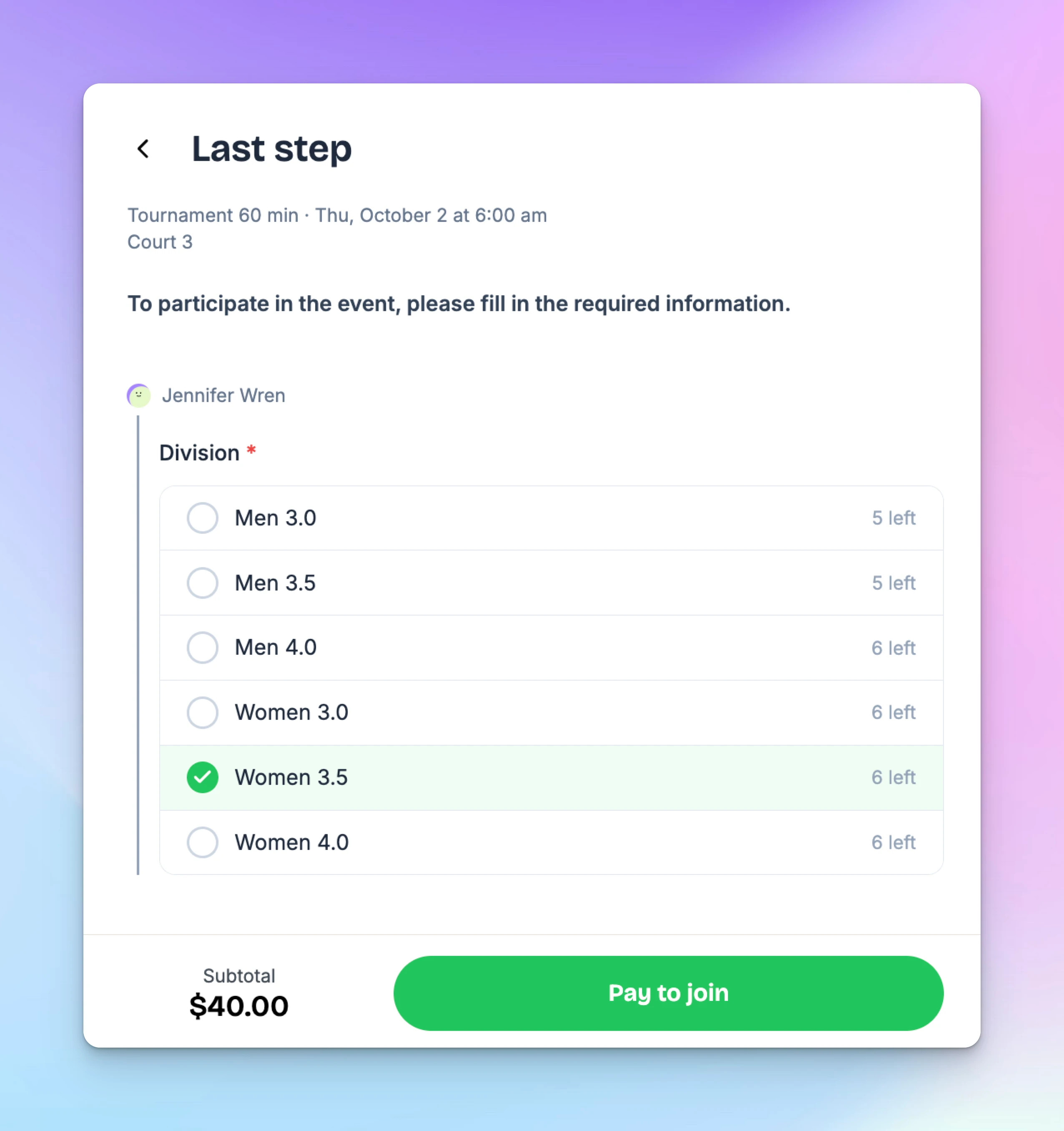
When signing up, participants will see the number of spots left in each division.
-
During registration, they must select a division before completing payment.
-
Each participant will be listed under their chosen division once registered.
✅ That’s it! Your event is now organized with clear divisions, making it easier for players to join the right group and for admins to manage balanced events.
Auto-Cancellation for Events
The Auto-Cancellation feature makes it easy for clubs to manage events that depend on a minimum number of participants, such as clinics and open plays. If an event doesn’t reach the required number of sign-ups by a set time, it will be automatically canceled, and refunds will be issued to participants.
Processing refunds
OpenCourt makes it easy to handle refunds automatically according to your club’s cancellation policy.