

Event Waitlist
The Event Waitlist feature lets clubs manage fully booked events more smoothly by allowing players to join a waitlist when no spots are available. When a spot opens up, players on the waitlist are notified automatically — helping clubs fill events faster and reduce last-minute drop-offs. You can choose between two types of waitlists depending on how much control you want over who gets invited and when.
Enabling a Waitlist for an Event
When creating an event:
-
Fill in all the usual event details (name, description, type, pricing, capacity).
-
Scroll to the Waitlist section.
-
Toggle Enable Waitlist ON.
-
Choose the waitlist type:
- Simple Waitlist
- Sequential Waitlist
-
Finish creating the event as usual.
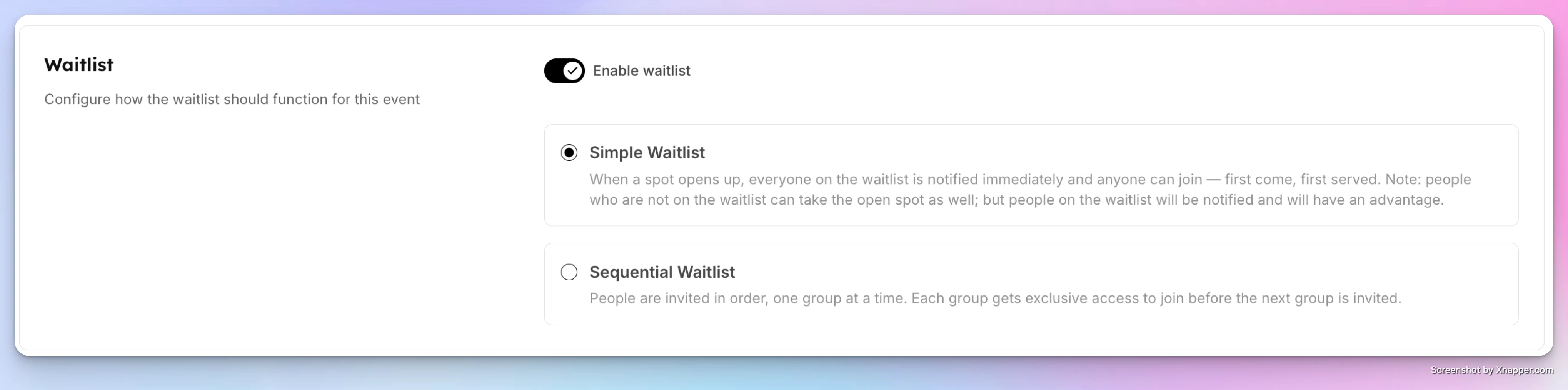
Simple Waitlist
A Simple Waitlist notifies everyone on the waitlist at the same time as soon as a spot becomes available, and it is best when you want minimal setup.
How it works
-
Until the event reaches capacity, it behaves like a normal event.
-
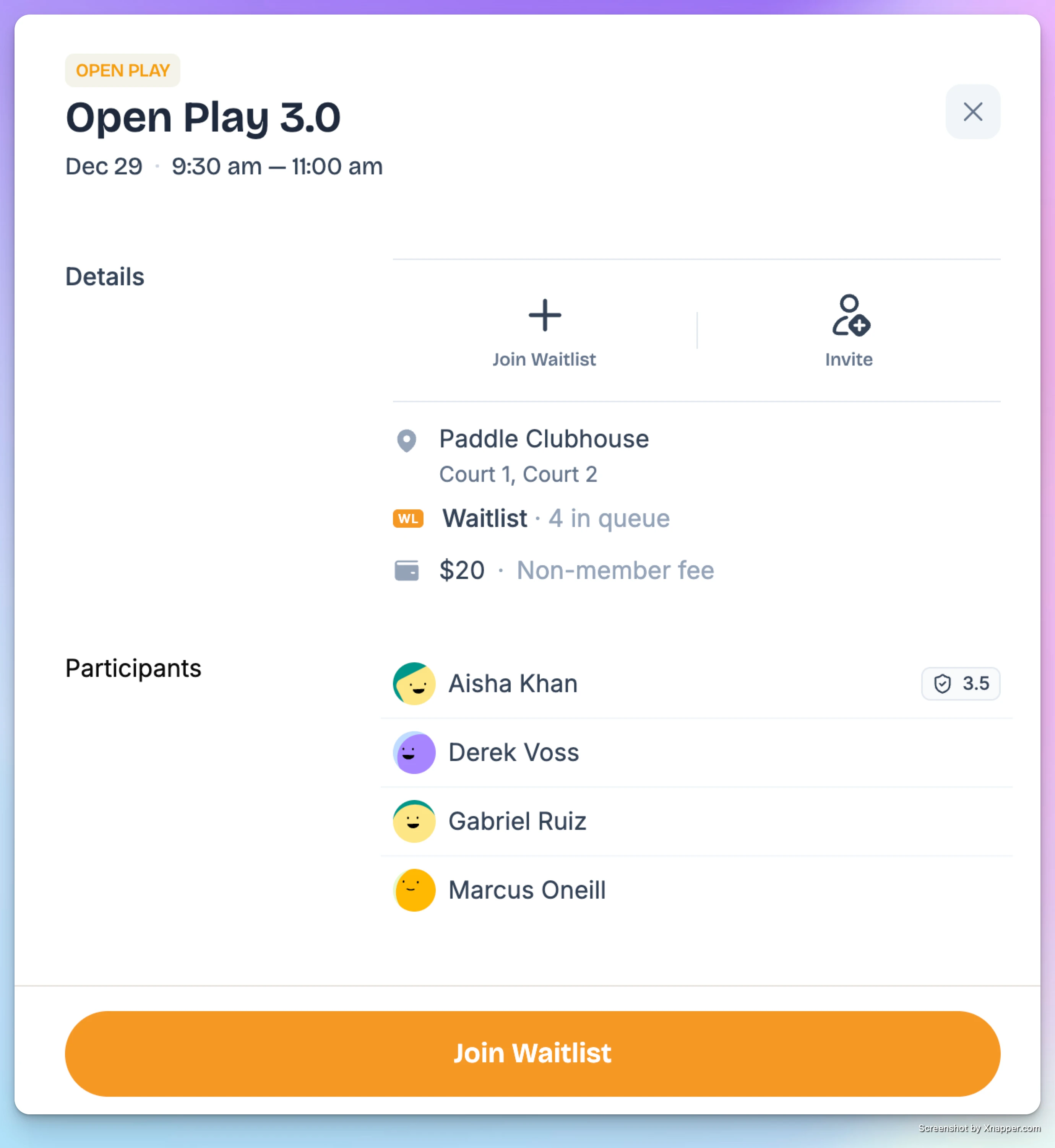
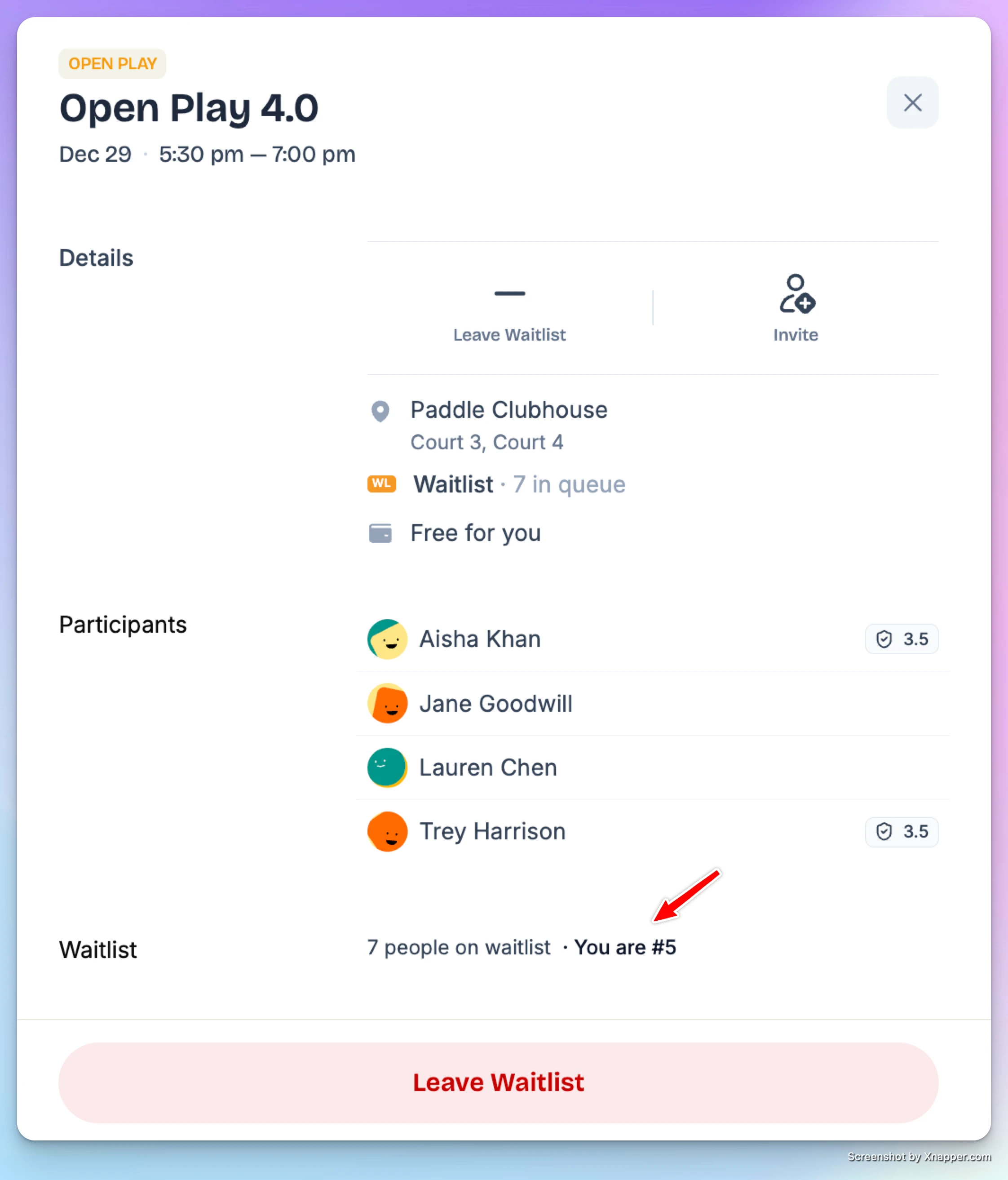
Once full, users can no longer join — but they’ll see a Join Waitlist button.
-
Users can:
-
Join the waitlist
-
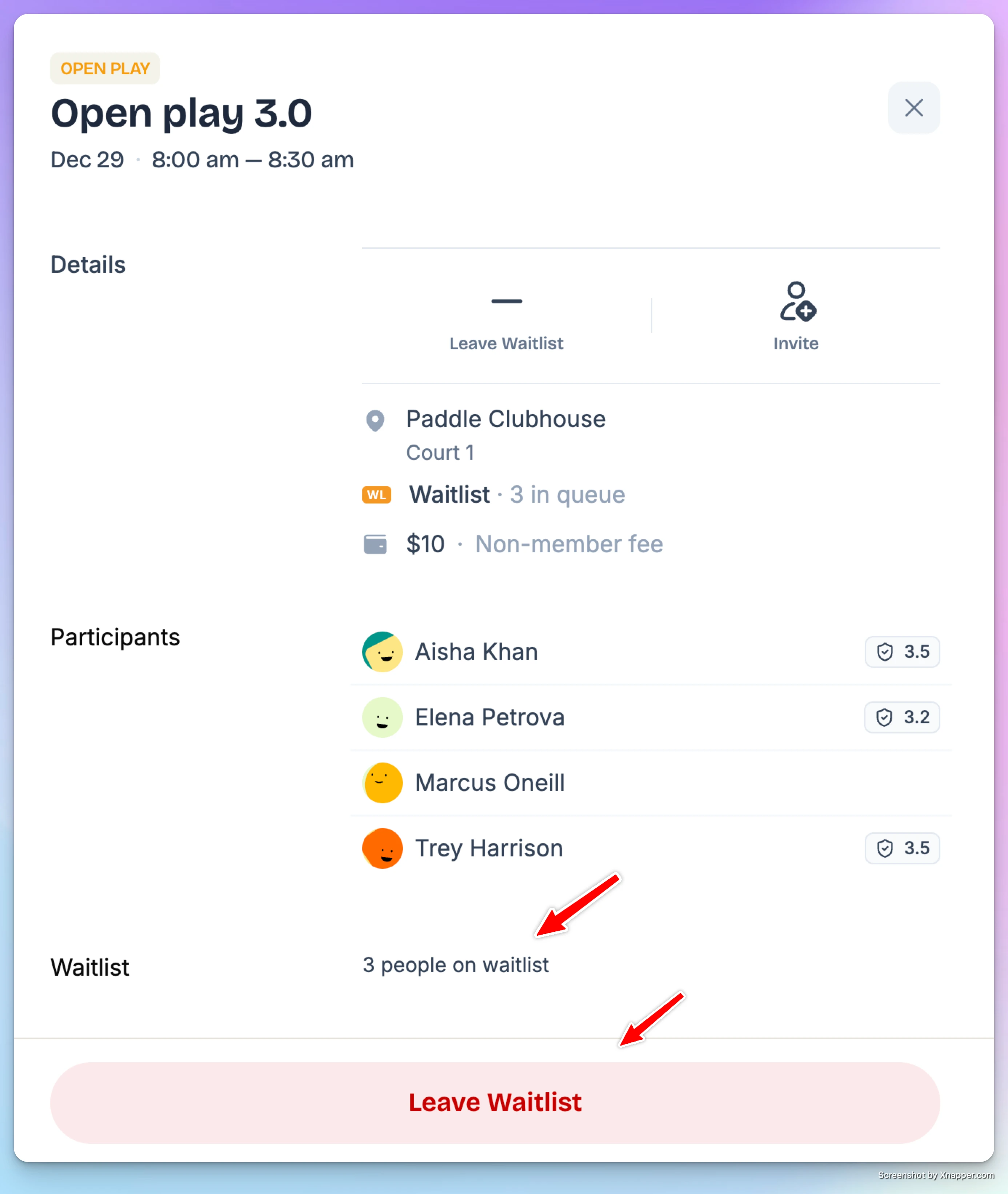
See how many people are currently waiting
-
Leave the waitlist at any time
-
When a spot opens
A spot can open if:
- A participant cancels
- An admin increases event capacity
When this happens:
- All waitlisted users receive a push notification and email.
- The event becomes open again.
- Whoever joins first gets the spot.
- The event is also open to the public — not just the waitlist.
Why join the waitlist?
The advantage is early notification — waitlisted users are alerted immediately when a spot becomes available.
Sequential Waitlist
A Sequential Waitlist gives clubs more control by inviting users in order, in small groups or one at a time.
Additional setup required
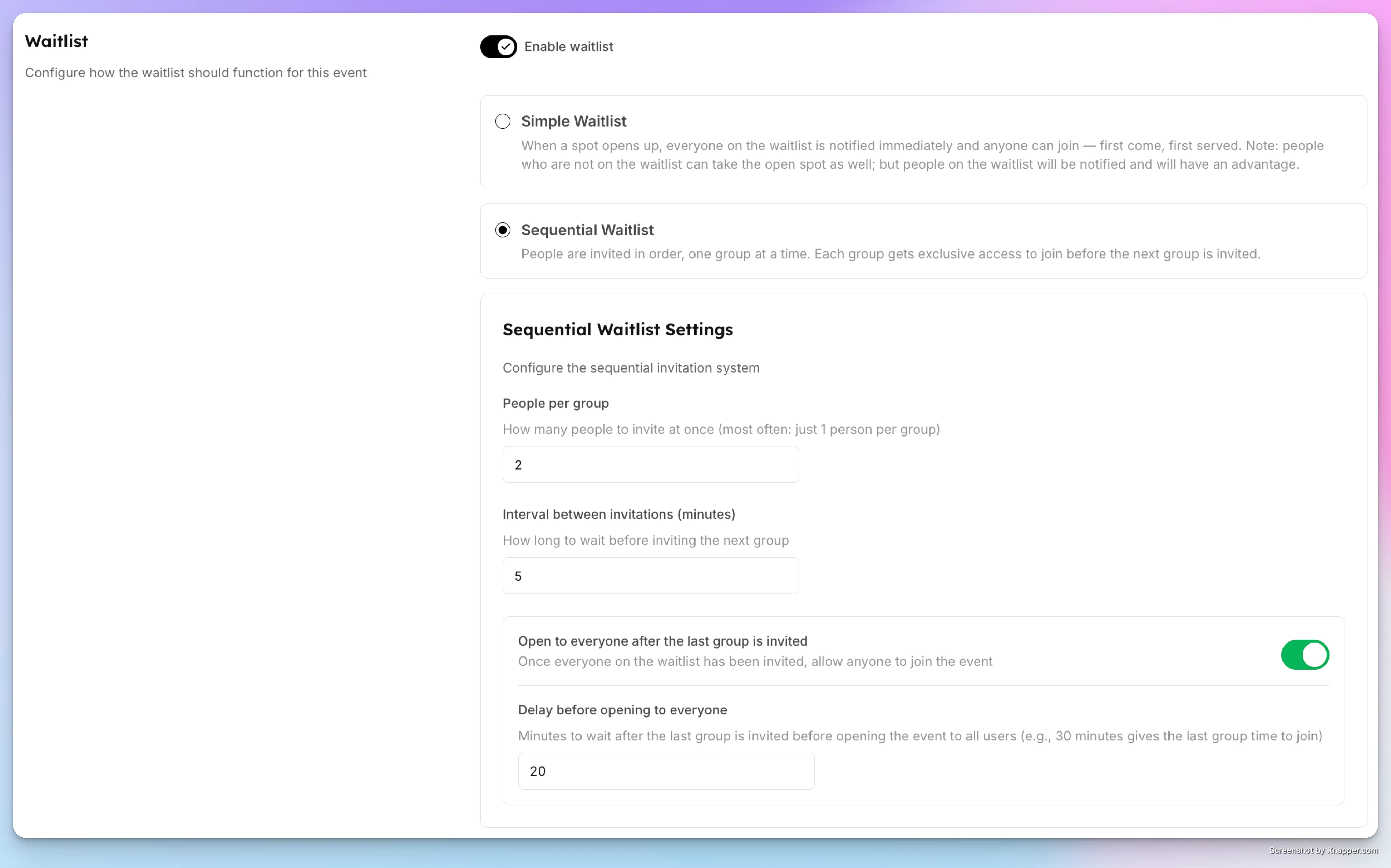
When selecting Sequential Waitlist, you’ll configure:
-
How many people are invited at a time (e.g. 2 people at a time)
-
Invitation interval (e.g. every 5 minutes)
-
Optional: Open event to public after waitlist is exhausted
How it works
-
Users are invited in the order they joined the waitlist.
-
Only the invited group can join during their invitation window.
-
If a user joins and takes the spot, all further invitations stop automatically.
-
If no one joins from :
- The system invites the next group after the set interval.
- Or, if enabled, opens the event to public access after the waitlist is exhausted.
Important rules
- Only people on the waitlist can join via a Sequential Waitlist, they can’t add guests with them.
- Each waitlisted person must join individually when it’s their turn.
- The earlier a user joins the waitlist, the better their chances.
Admin Controls
Admins can manage waitlists directly:
-
Add users to the waitlist manually
-
Remove users from the waitlist
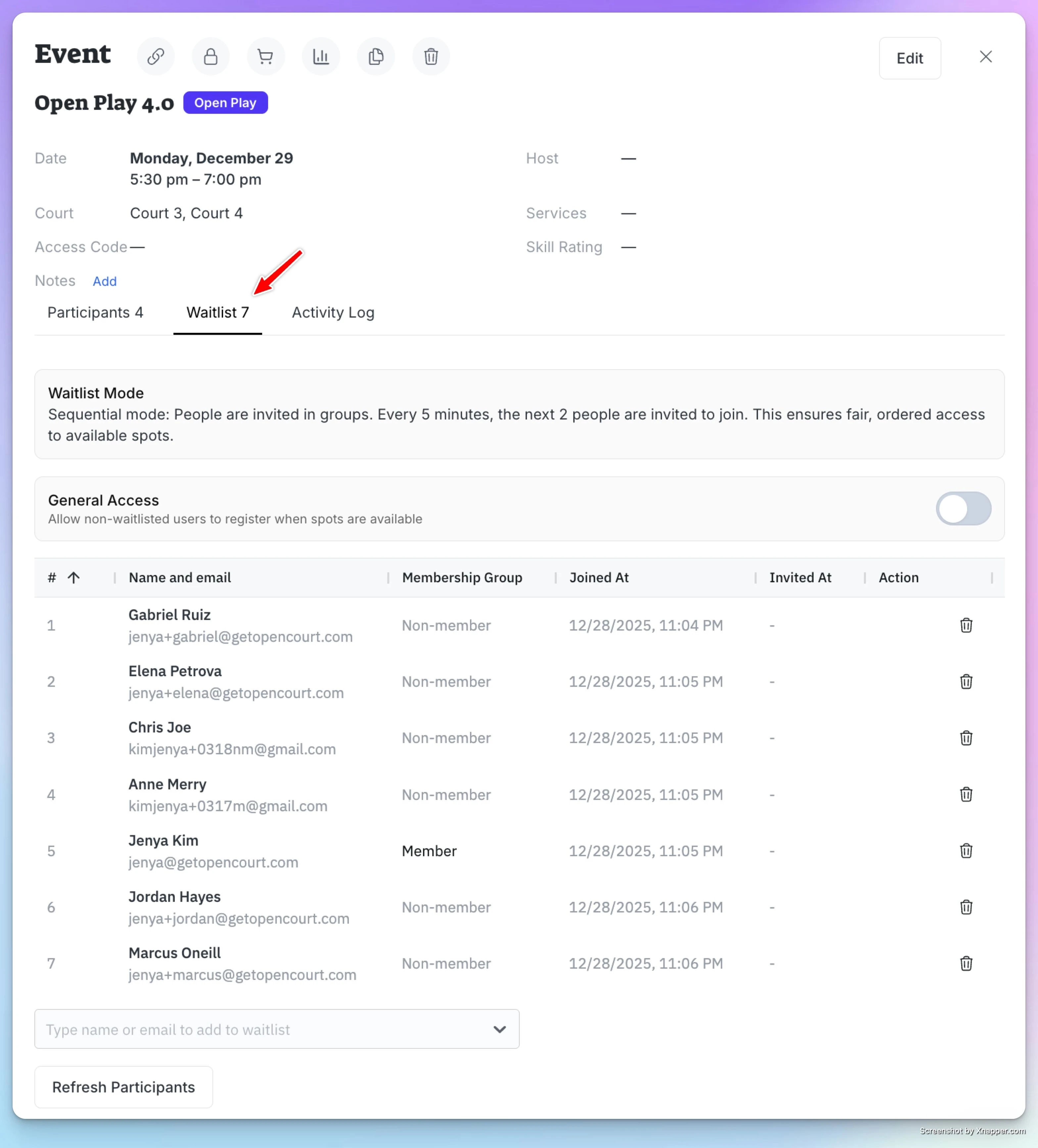
If an admin adds a waitlisted user to the event:
- That user is automatically removed from the waitlist
- The next eligible waitlisted user moves up in line
When to Use Each Type
Use Simple Waitlist if you want:
- Quick setup
- First-come, first-served access
- Public access as soon as a spot opens
Use Sequential Waitlist if you want:
- Controlled invitations
- Priority based on waitlist order
- Less competition when a spot opens
The Event Waitlist feature helps clubs maximize attendance, reduce empty spots, and give players a fair chance to join popular events — even when they fill up fast.
Pricing Models
OpenCourt supports a wide range of pricing models so clubs can charge for court time in the way that best fits their policies and membership structure. You can combine different pricing rules — such as per-court fees, per-person fees, fixed reservation pricing, day passes, and guest fees — and apply them differently to members, non-members, and specific membership tiers.
Creating and Managing Promo Codes
Promo codes let clubs offer discounts to players for court reservations and events. You can control what a promo code applies to, how much discount it gives, and when it’s valid, and how many times it can be used.