

Creating a reservation
In a vast majority cases, your customers will be making their own court reservations.
In a vast majority cases, your customers will be making their own court reservations. However, sometimes you need to create a reservation for them (for example, when you're processing a walk-in).
Admins can add reservations for any customer in just a few taps. Below you’ll find two equally quick methods. Choose the one that fits your day‑to‑day routine.
If it's an existing customer with an account on OpenCourt, see instructions below. If it's a new customer, then add them to the platform first.
Method 1: Create from the Schedule Page
- In the left-hand admin menu, click the Schedule page to open the schedule grid.
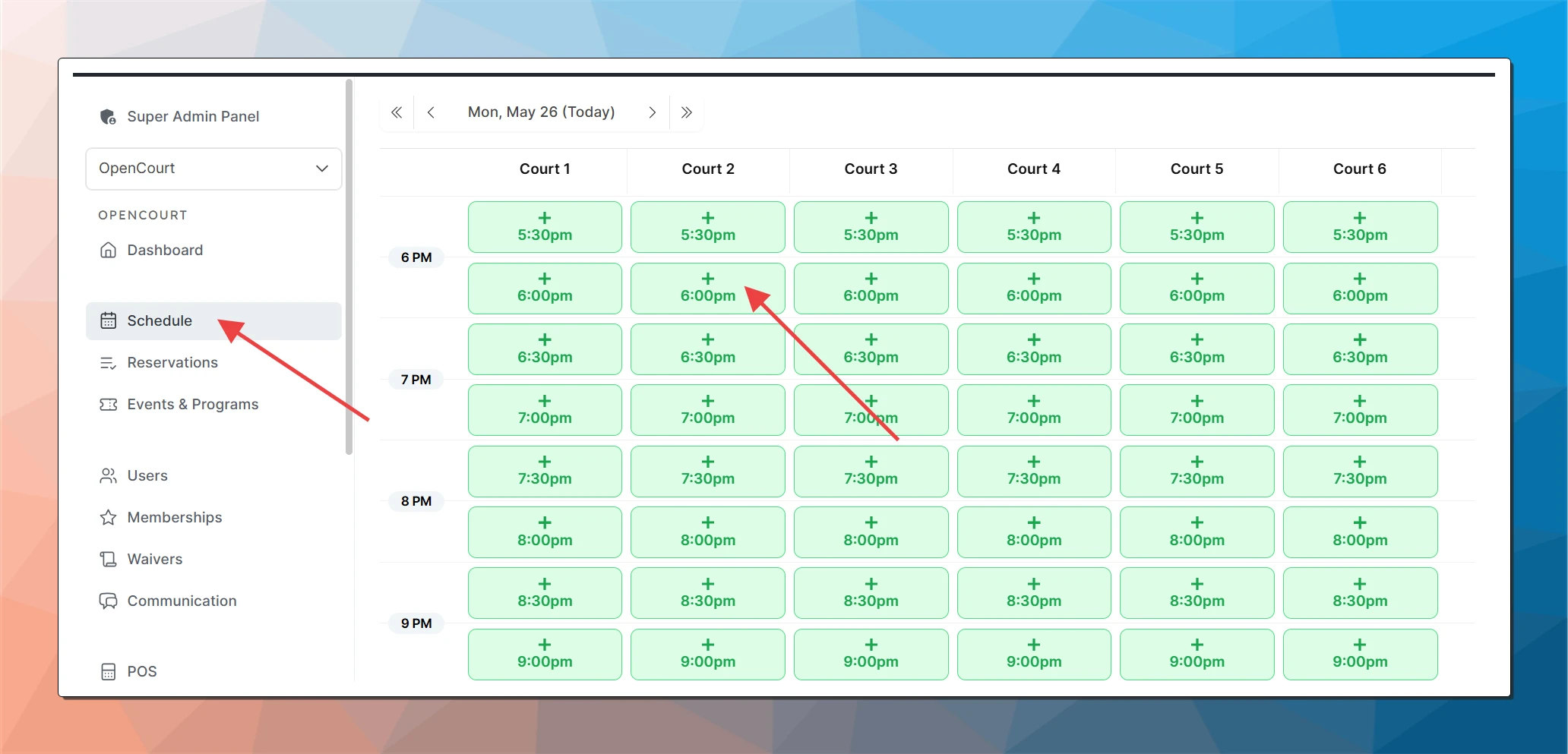
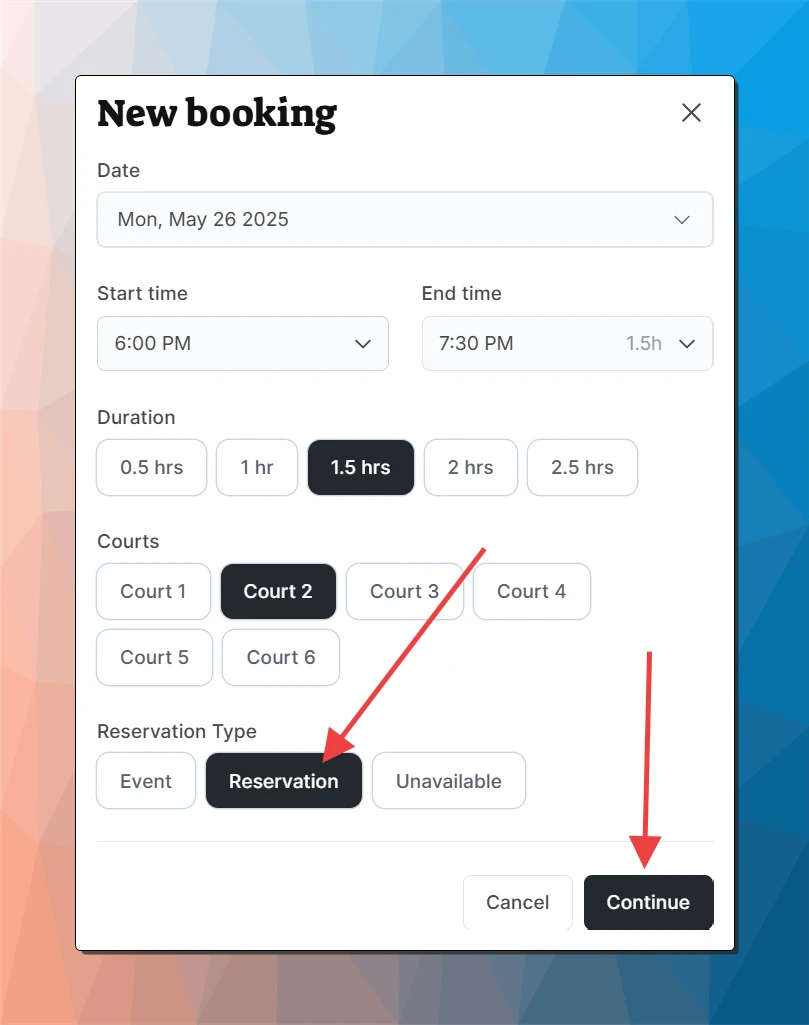
- Click an empty time slot you'd like to reserve. A New Booking pop-up window will appear.
- In the pop-up window, choose the duration, select Reservation and click Continue.
- The "Create New Reservation" page will open with the time slot prefilled. Search for the player to assign a host for this reservation.
- Use the dropdown to find the customer by name or email.
- If the customer hasn't been created yet and has never interacted with the platform, you won't find them here. First, you'll need to add new customer to your club.
- You only add the host here. You can add more participants later on after the reservation is created.
- Use the dropdown to find the customer by name or email.
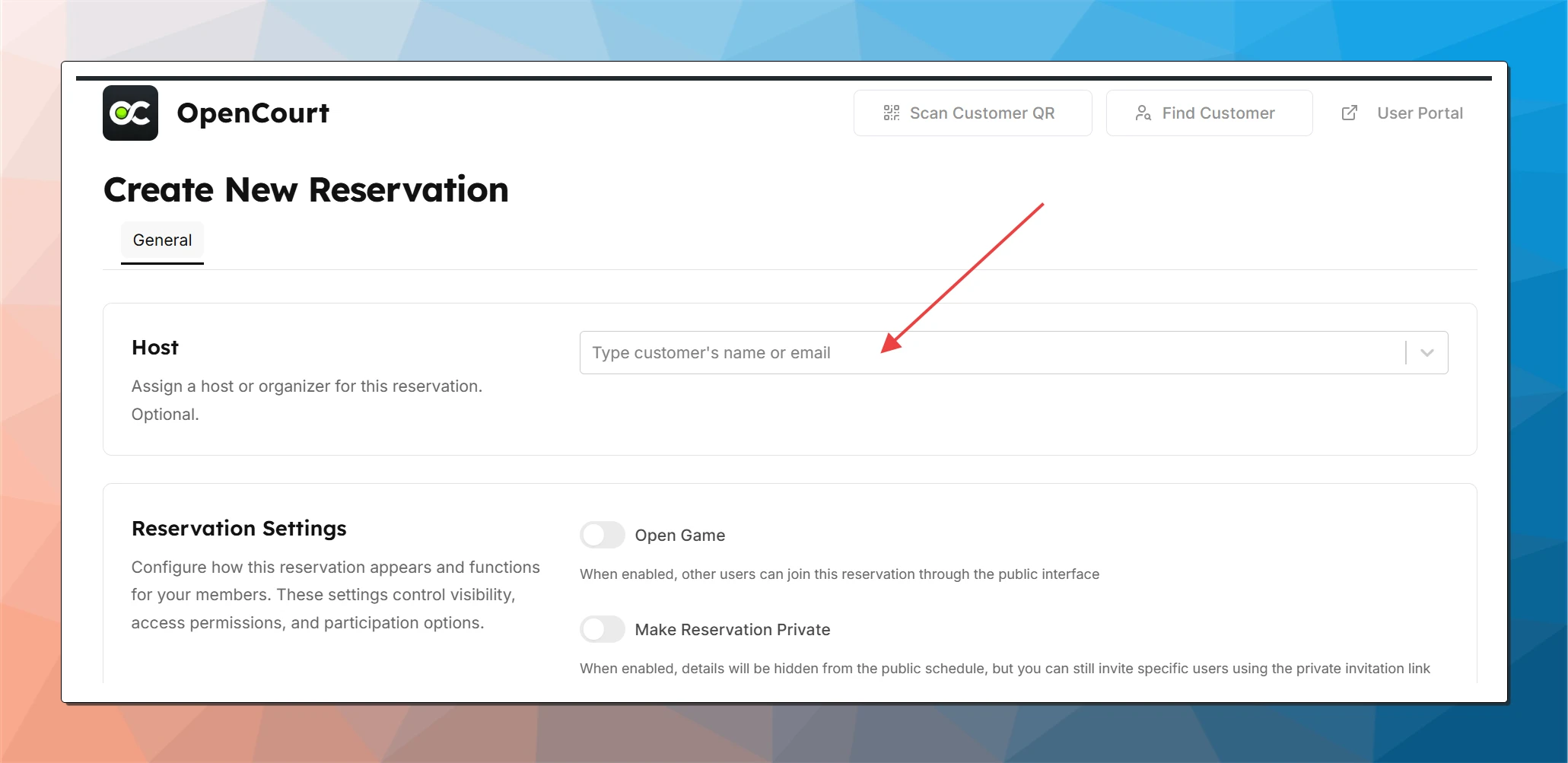
- Choose the reservation settings
- Open Game: allowing anyone who spots this reservation on the schedule to join until all slots are filled.
- Private: player's name won't be seen in the reservation publicly
- Double-check court, date, time, and duration — then hit Create Reservation. You're done! The Reservation Info pop-up window will show up after the reservation is created.
Method 2: Create from the Reservations Page
- In the left-hand menu, click the Reservations page, then hit New Reservation.
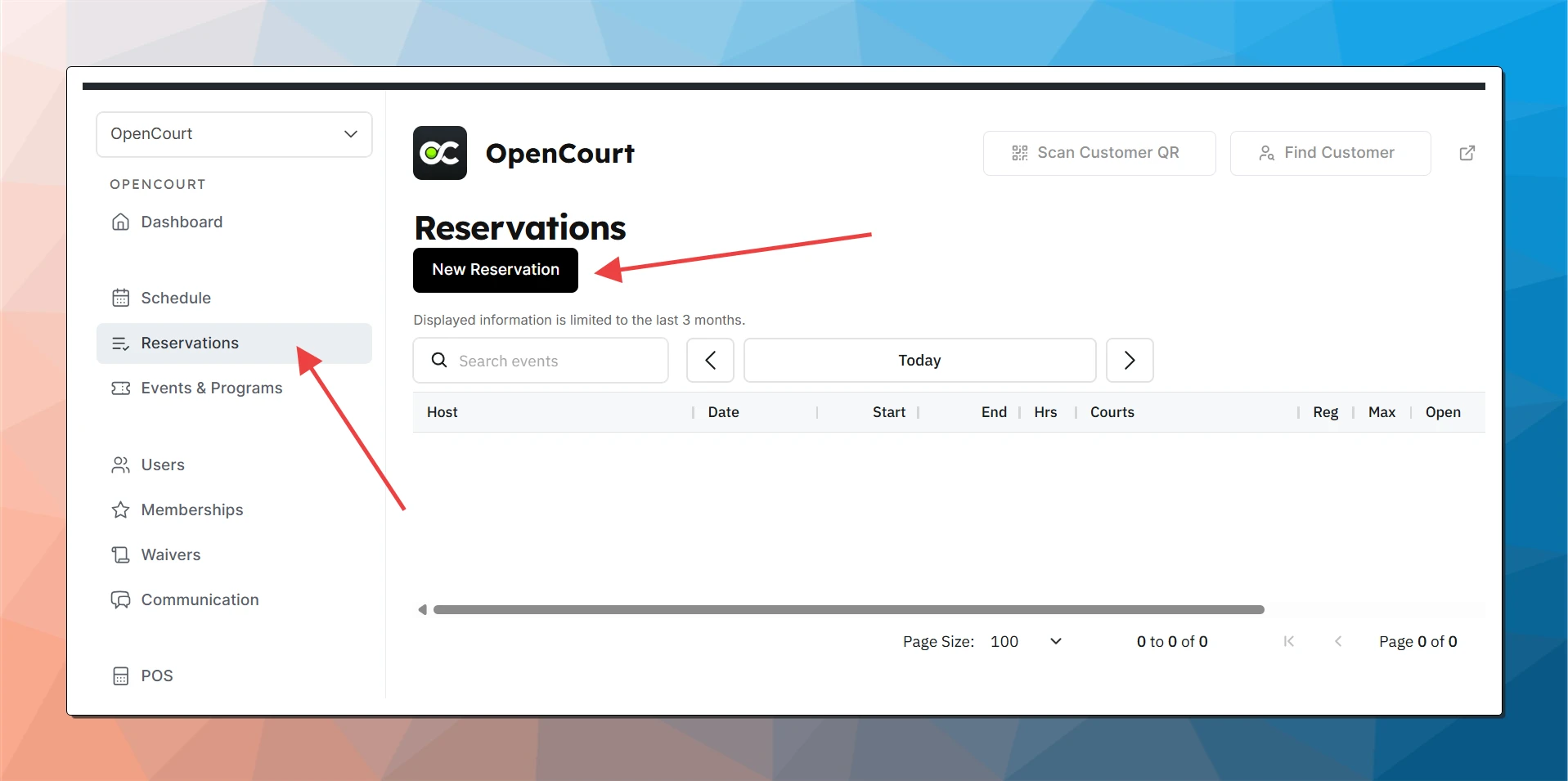
- The "Create New Reservation" page will open without the time slot prefilled. Search for the player to assign a host for this reservation.
- Use the dropdown to find the customer by name or email.
- If the customer hasn't been created yet and has never interacted with the platform, you won't find them here. First, you'll need to add new customer to your club.
- You only add the host here. You can add more participants later on after the reservation is created.
- Use the dropdown to find the customer by name or email.
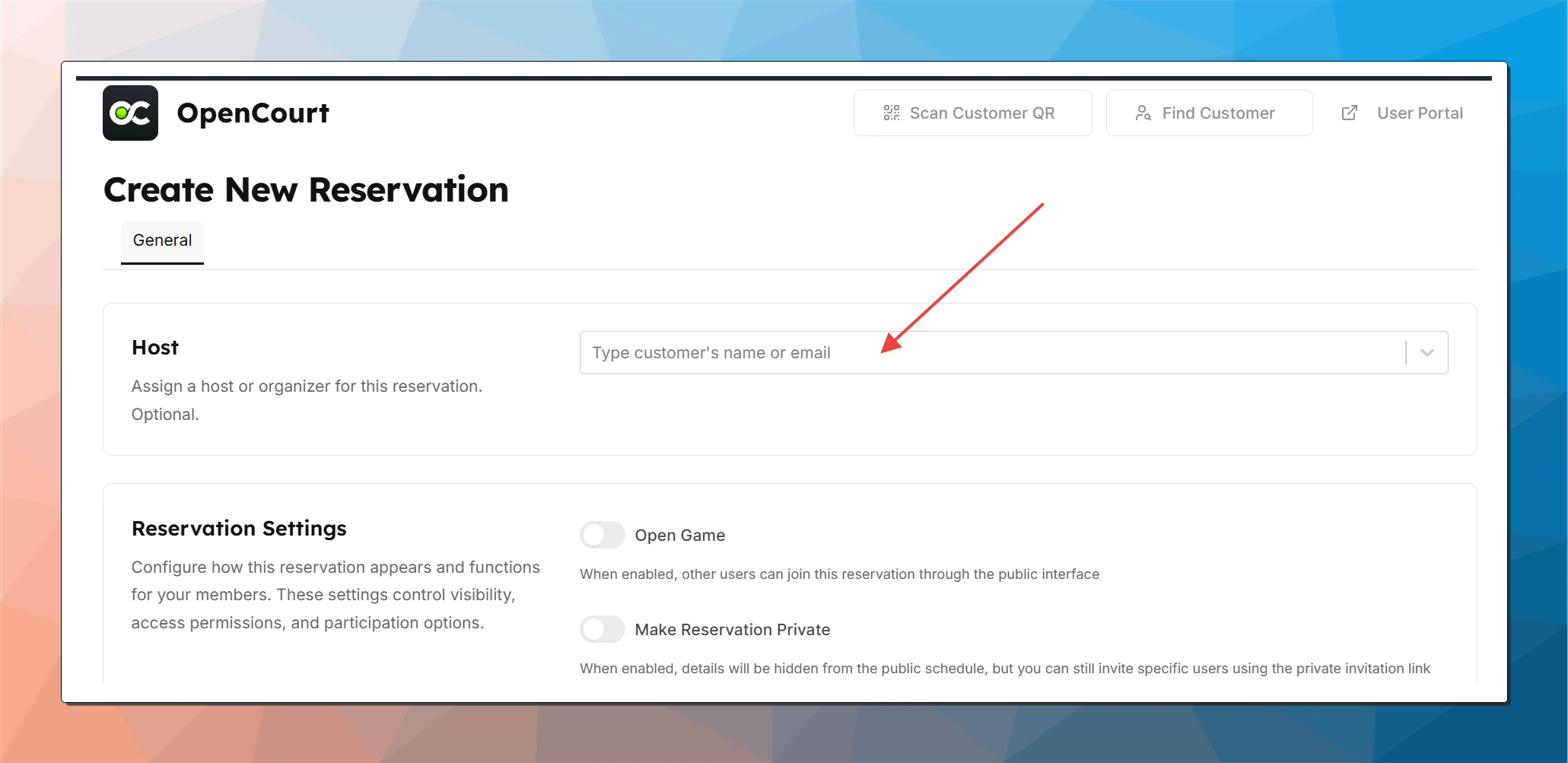
- Choose the reservation settings
- Open Game: allowing anyone who spots this reservation on the schedule to join until all slots are filled.
- Private: player's name won't be seen in the reservation publicly
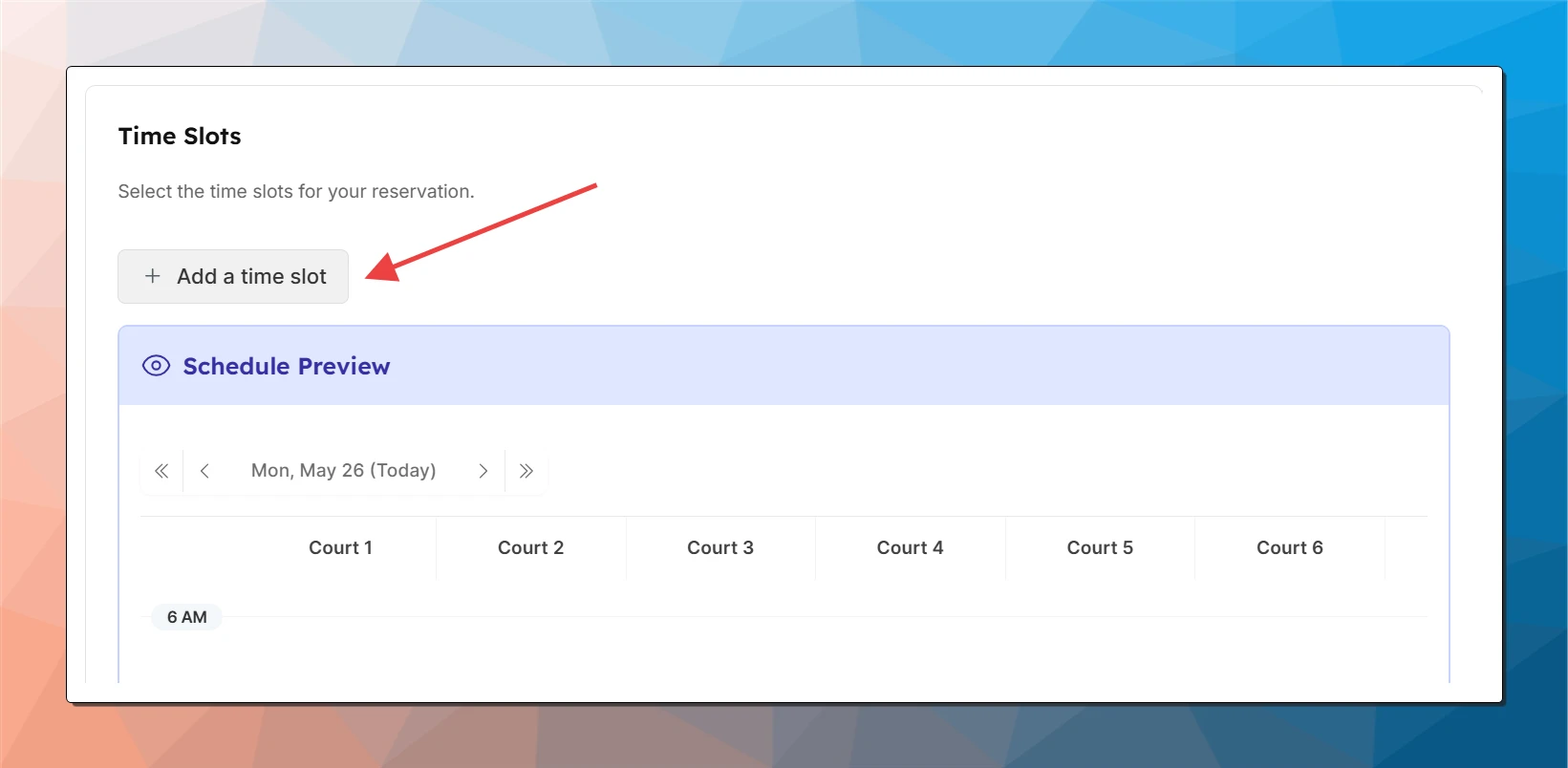
- Scroll down and click on " + Add a Time Slot"
- Set Date, Time, Court, and Duration.
- You can see where the reservation fits in the schedule in the preview window below.
- Click Create Reservation. You're done! The Reservation Info pop-up window will show up after the reservation is created.
Reservations vs. Events
Both Reservations and Events block time on one or more courts, but they differ in who creates them, how players join, and how pricing works.
Creating an event
Events are Open Plays, Socials, Clinics, Tournaments, Leagues, Opening Parties, etc: anything that your customers can join as a participant.