

Event Tags
Event tags let you organize and categorize your events with custom labels like "Beginner", "Advanced", "Ladies Night", "Youth", or anything that fits your club. Tags show up as colored badges on events in the admin panel, and — more importantly — they can replace the default event type tabs on the user-facing Join page with your own custom filters. Tags also integrate with booking passes, so you can create passes that only work for events with certain tags (e.g., a "Beginner Clinic Pass" that only applies to events tagged "Beginner").
Setting Up Tags
Creating Tags
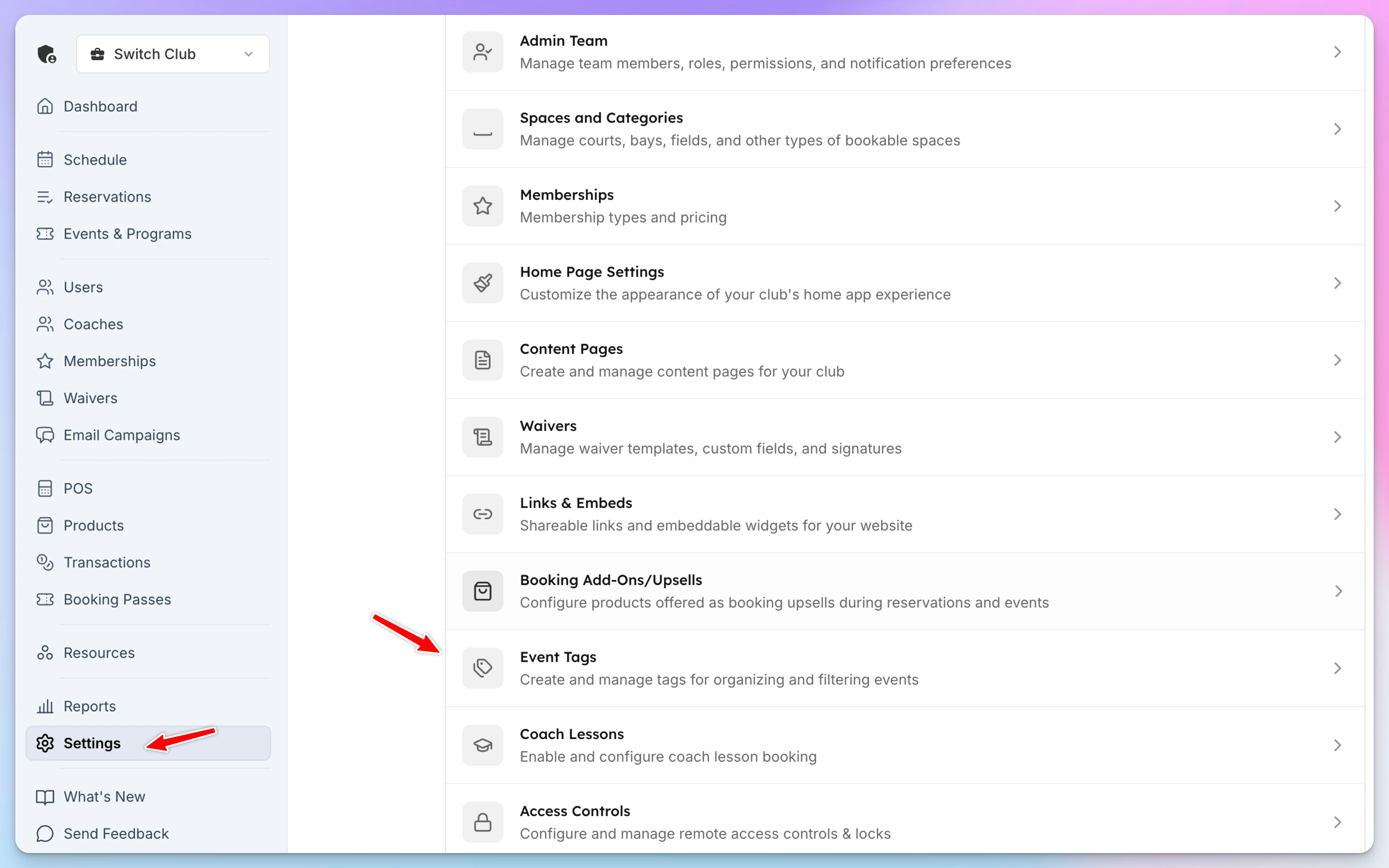
- Go to Settings → Event Tags
- Click Create Tag
- Enter a name (e.g., "Beginner", "Advanced", "Ladies", "Youth")
- A color is automatically assigned — you can change it by clicking the color swatch
- Click Create
Tags are unique per club — you can't have two tags with the same name.
Managing Tags
On the Event Tags settings page you can:
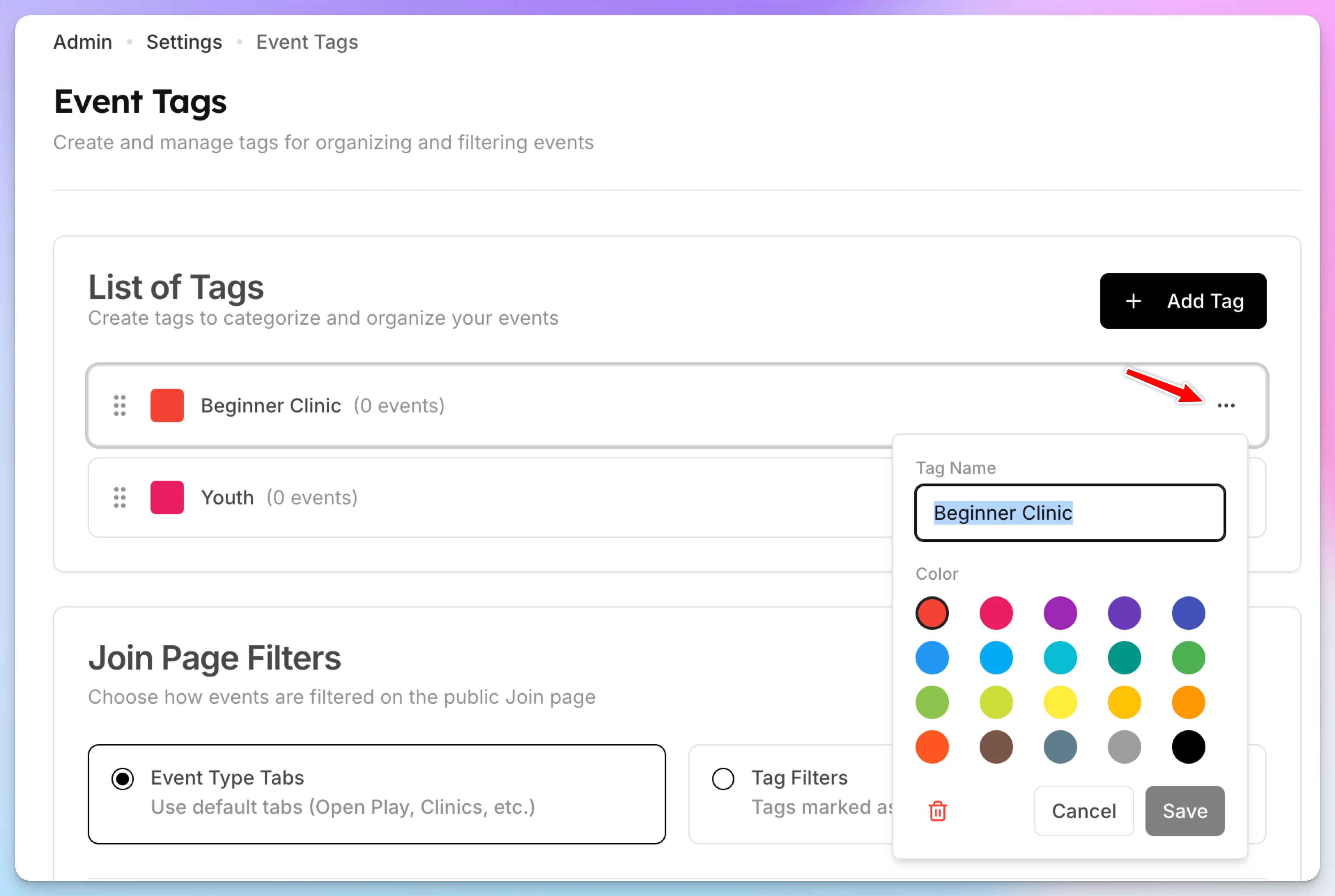
- Rename a tag by clicking its name
- Change the color by clicking the color swatch
- Reorder tags by dragging — this controls the display order everywhere tags appear
- Delete a tag — the system shows how many events and booking passes will be affected before you confirm
Assigning Tags to Events
From the Event Editor
- Open an event for editing in the admin panel
- In the event settings area, find the Tags section
- Click to open the tag selector
- Search for and select one or more tags — they appear as colored badges
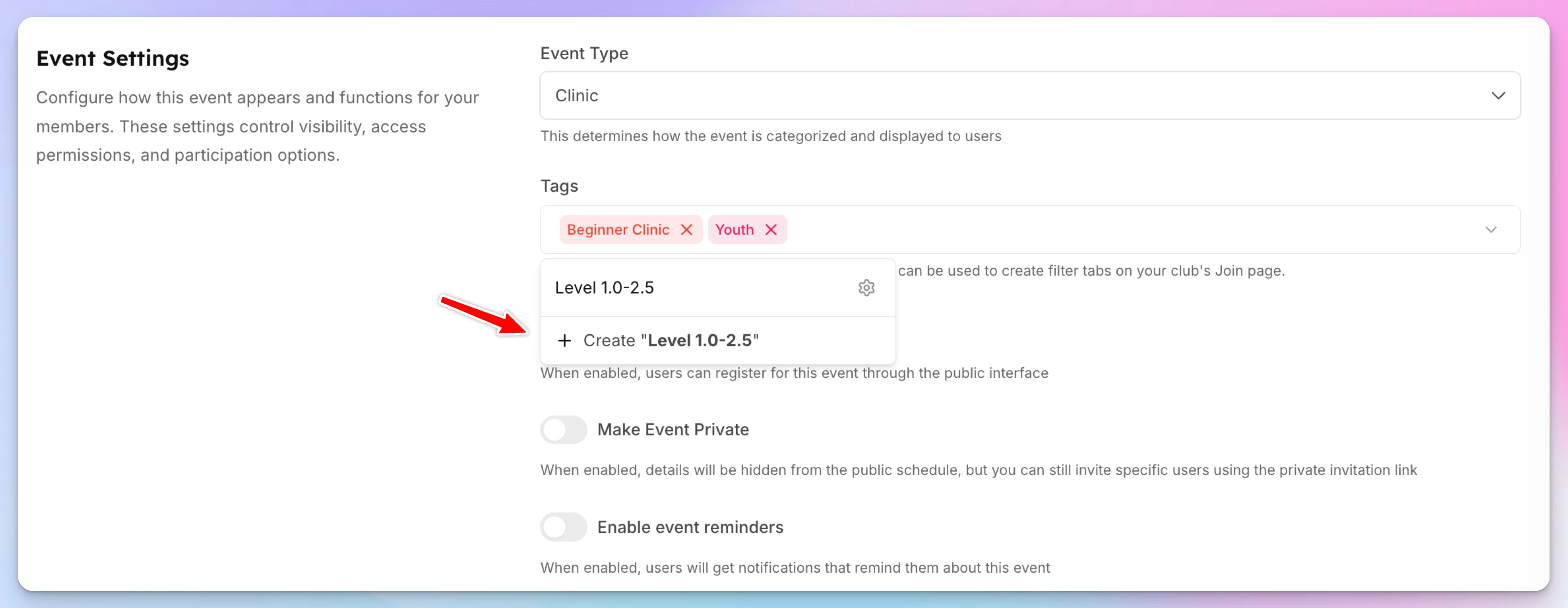
- You can also create a new tag inline if the one you need doesn't exist yet
Tags are saved immediately when you select or deselect them.
From the Event Details Modal
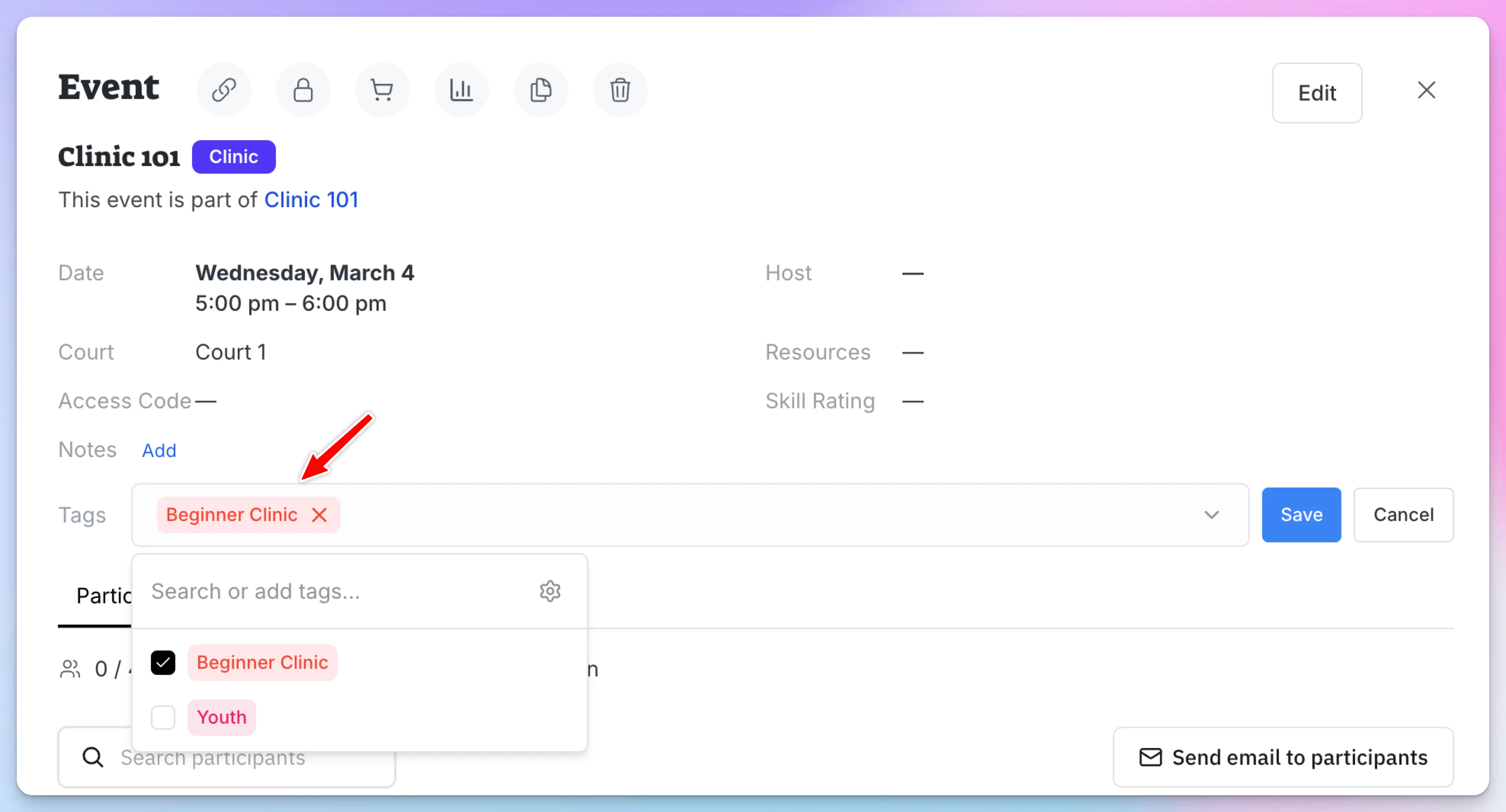
When viewing an event's details in the admin panel, tags appear as badges. Click the edit button next to the tags to add or remove them.
Tags in the Admin Events List
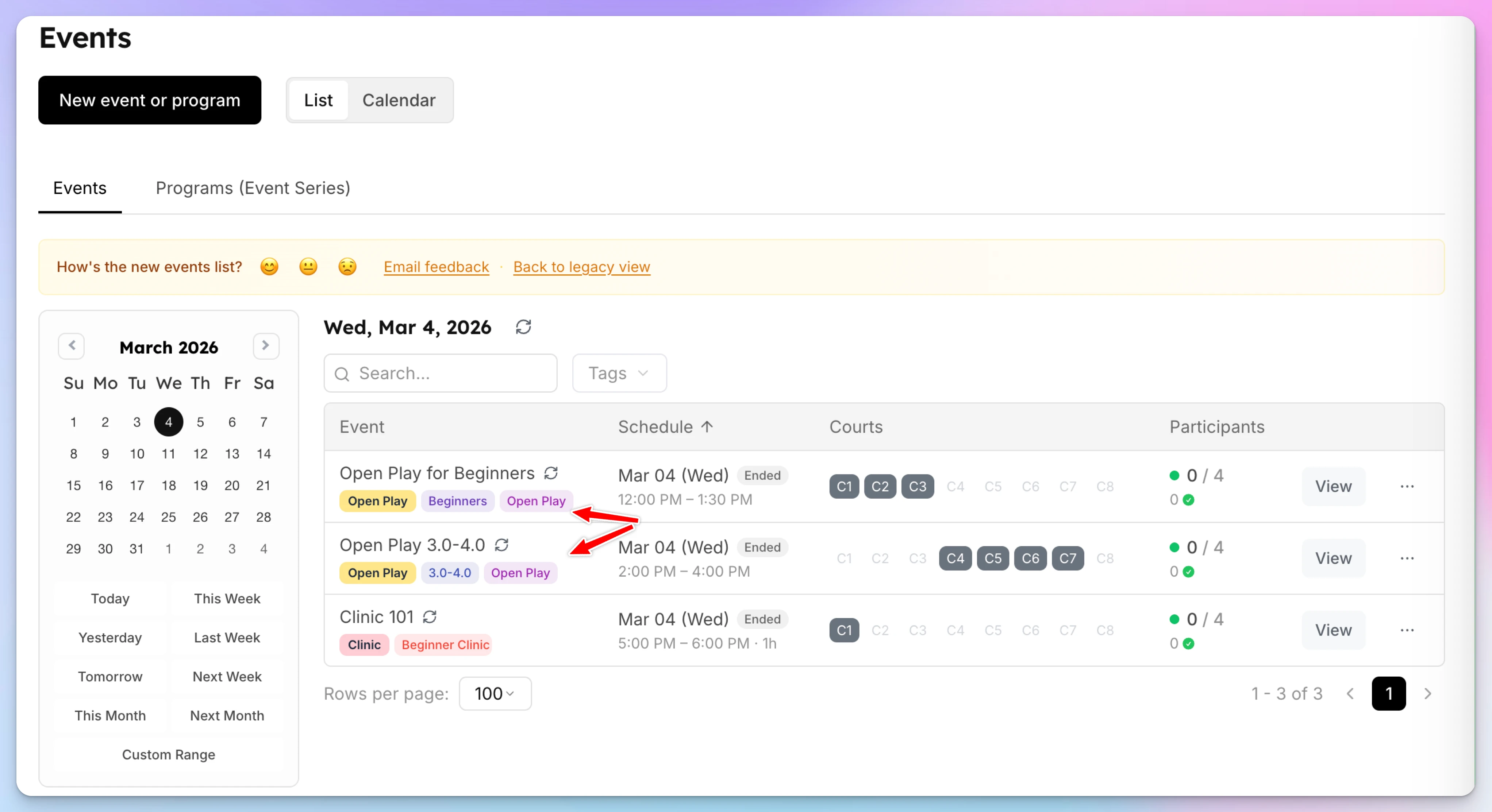
Tags appear as colored badges in the events table, making it easy to visually scan which events belong to which categories.
Filtering Events on the User Join Page
This is the main user-facing benefit of tags. Instead of the default event type tabs (Open Play, Clinics, Tournaments, etc.), you can show your own custom tag-based tabs on the Join page.
Two Filter Modes
The Join page supports two filter modes, configured in Settings → Event Tags:
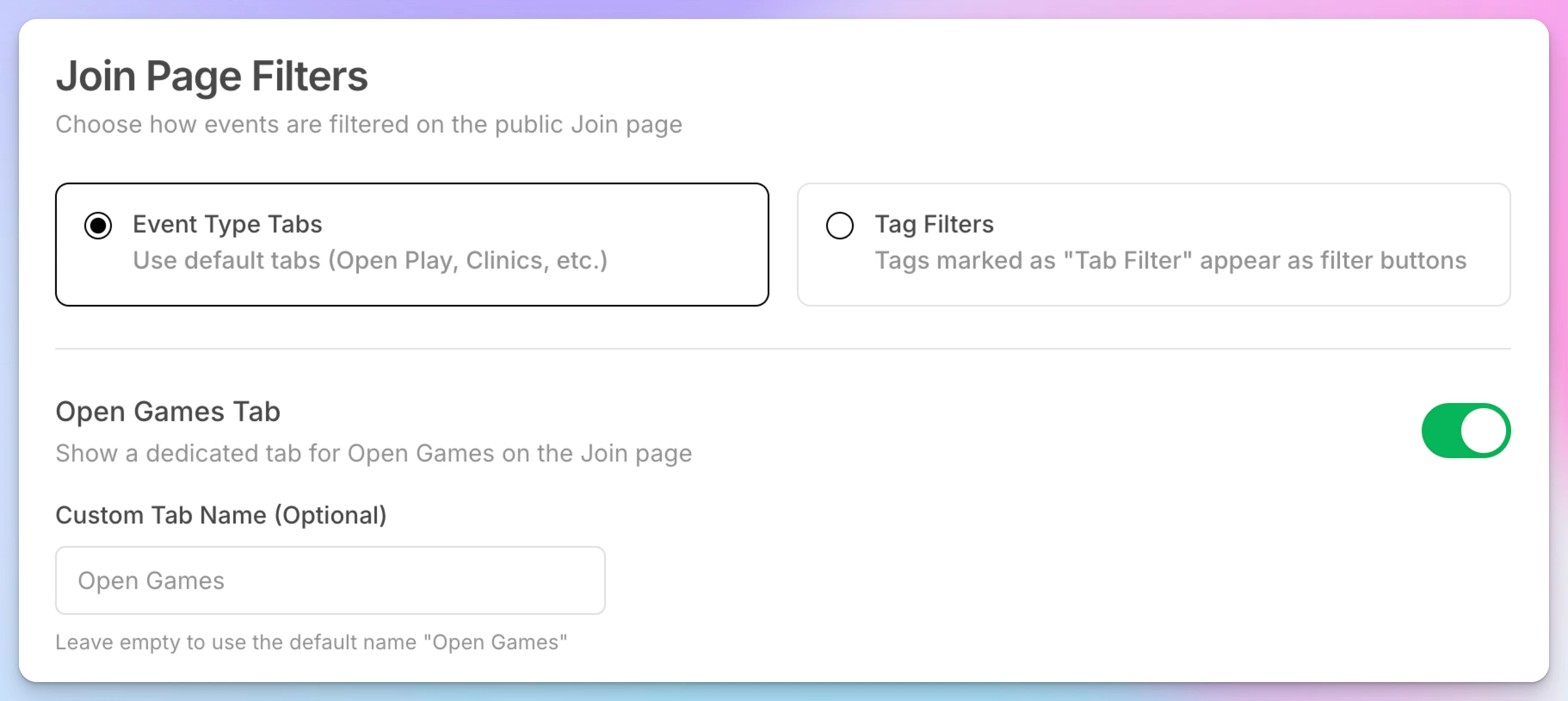
1. Event Type Tabs (Default)
The standard tabs based on event type:
- Open Play
- Clinics
- Tournaments
- Leagues
- Other
This is the default mode if you haven't set up tag filtering.
2. Tag Filter Tabs
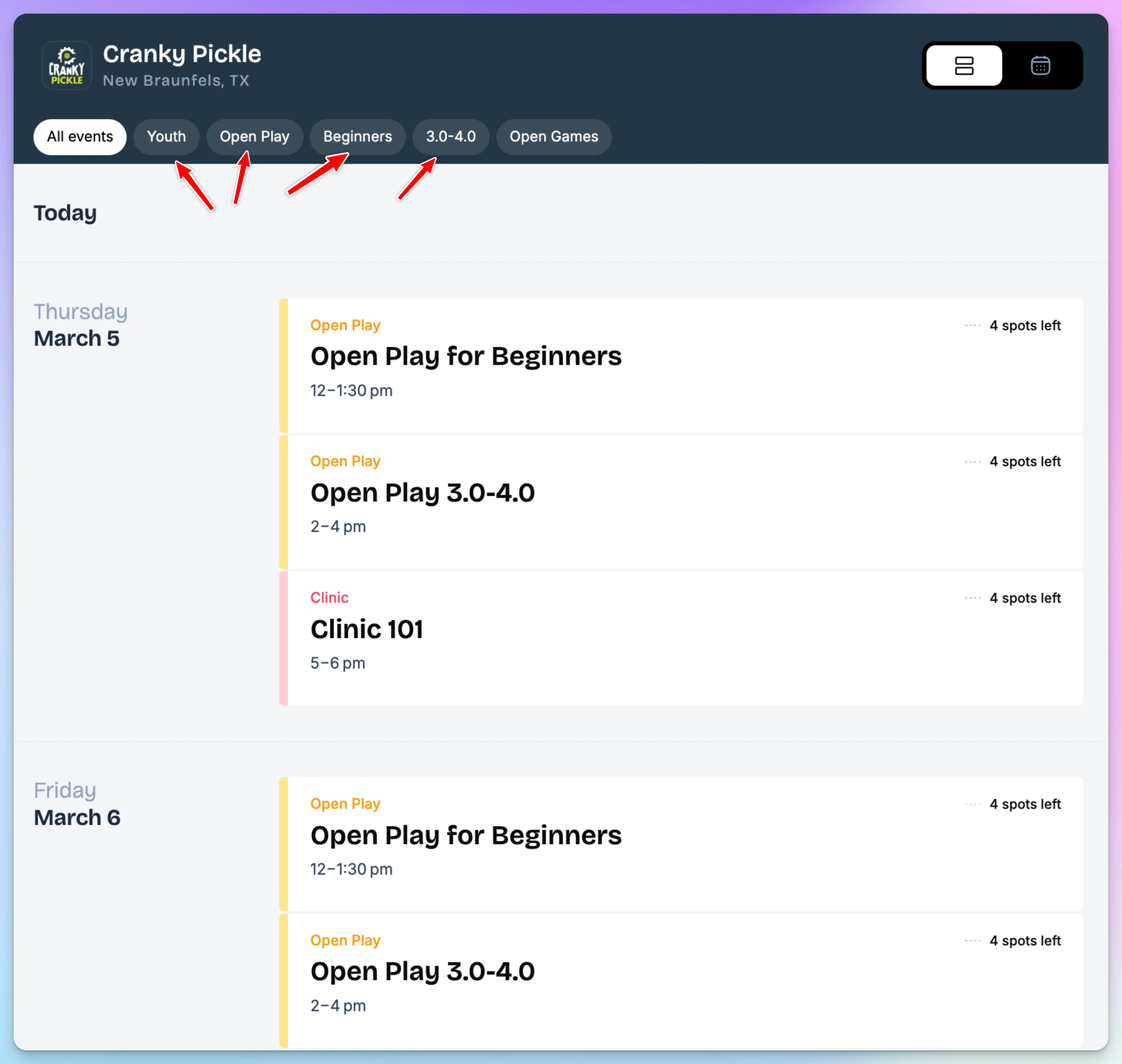
Your custom tags replace the default tabs. Members tap a tag to see only events with that tag. An "All Events" tab shows everything.
Setting Up Tag Filter Tabs
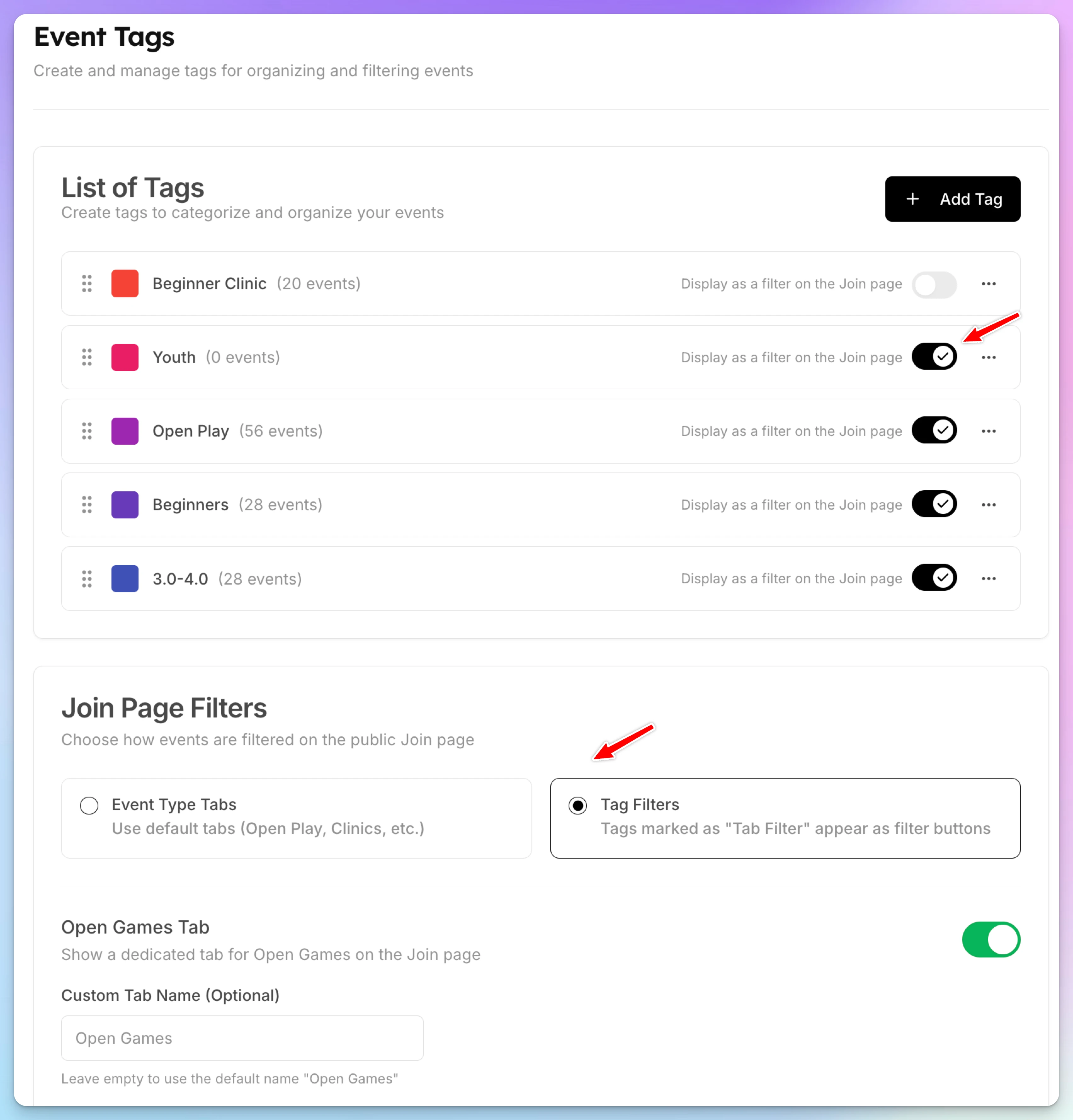
- Go to Settings → Event Tags
- Switch the filter mode from Event Type Tabs to Tags Filter
- For each tag you want to appear as a tab on the Join page, toggle the Tab Filter switch on
- Not every tag needs to be a tab — you might have tags for internal organization that you don't expose to members
- Drag to reorder the tabs — this is the order members will see them
- Save your changes
How It Works for Members
When tag filtering is enabled:
- The Join page shows an All Events tab plus one tab per tag marked as a tab filter
- Tapping a tag tab shows only events that have that tag assigned
- Events can have multiple tags — they'll appear under each matching tab
- The "All Events" tab shows everything (unless an event is specifically hidden — see below)
Open Games Tab
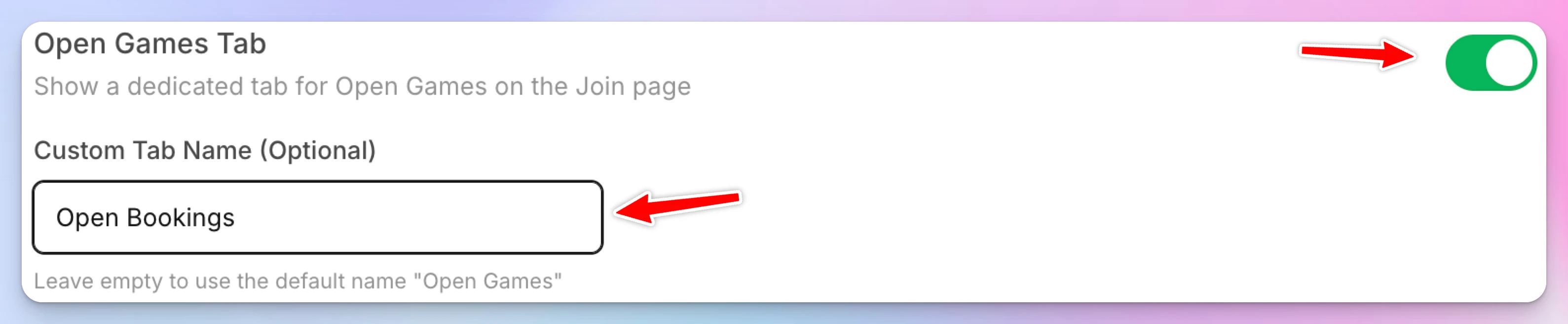
Regardless of which filter mode you use, you can optionally enable an Open Games tab that appears alongside the other tabs. This shows member-created open games/reservations. You can also customize the tab name (e.g., "Open Bookings").
Configure this in the same Event Tags settings page.
Restricting Booking Passes by Tag
Tags integrate with the booking pass system. When creating or editing a booking pass template, you can restrict the pass to only work for events with certain tags.
How It Works
- Go to Booking Passes in the admin panel
- Create or edit a pass template
- In the restrictions section, select which event tags this pass applies to
- Save the template
When a member tries to use a booking pass for an event, the system checks:
- If the pass has tag restrictions: the event must have at least one matching tag
- If the pass has event type restrictions (e.g., Clinics only): the event must match the type
- If the pass has both: the event needs to match either the tag or the event type (OR logic)
- If the pass also has time restrictions: the event must additionally fall within the allowed schedule (AND logic)
Example
A club creates three booking passes:
- "Beginner Clinic Pass" — restricted to tag "Beginner" → only works for events tagged "Beginner"
- "All Clinics Pass" — restricted to event type "Clinic" → works for any clinic regardless of tags
- "Ladies Night Pass" — restricted to tag "Ladies" → only works for events tagged "Ladies"
A member with the "Beginner Clinic Pass" tries to join an advanced clinic — the pass won't apply because the event doesn't have the "Beginner" tag.
Tips
- Start simple — Create a few broad tags ("Beginner", "Intermediate", "Advanced") and expand from there based on what members search for
- Use tab filters for the categories members care about — If members frequently ask "which clinics are for beginners?", make "Beginner" a tab filter
- Keep internal tags off the tab filter — Tags like "Needs Review" or "Premium" can be useful for admin organization without appearing on the Join page
- One event, multiple tags — An event can be tagged both "Beginner" and "Ladies", appearing under both tabs
- Tag colors matter — They show up as badges in the admin list and help with quick visual scanning. The system auto-picks contrasting colors, but you can customize them
- Booking pass restrictions — Combine tag restrictions with time restrictions for precise control (e.g., "Beginner Pass" that only works on weekday mornings for events tagged "Beginner")
Resources (Ball Machines, Equipment & More)
Resources are bookable items at your club that members can add to their court reservations — ball machines, pitching machines, or any other equipment that needs to be reserved for a specific time slot. When a member books a court, they can optionally add a resource to their reservation. The system tracks availability so two people can't book the same ball machine at the same time, and handles pricing automatically.
Dependent Spaces
Dependent spaces let you link courts or spaces that share a physical footprint — like a full tennis court that can also be split into two pickleball courts. When one space is booked, OpenCourt automatically blocks off the others in the same time window, across reservations, events, and programs. No more double-bookings or manual coordination. Just set up the rules once and OpenCourt handles the rest.