

Processing refunds
OpenCourt makes it easy to handle refunds automatically according to your club’s cancellation policy.
How Automatic Refunds Work
-
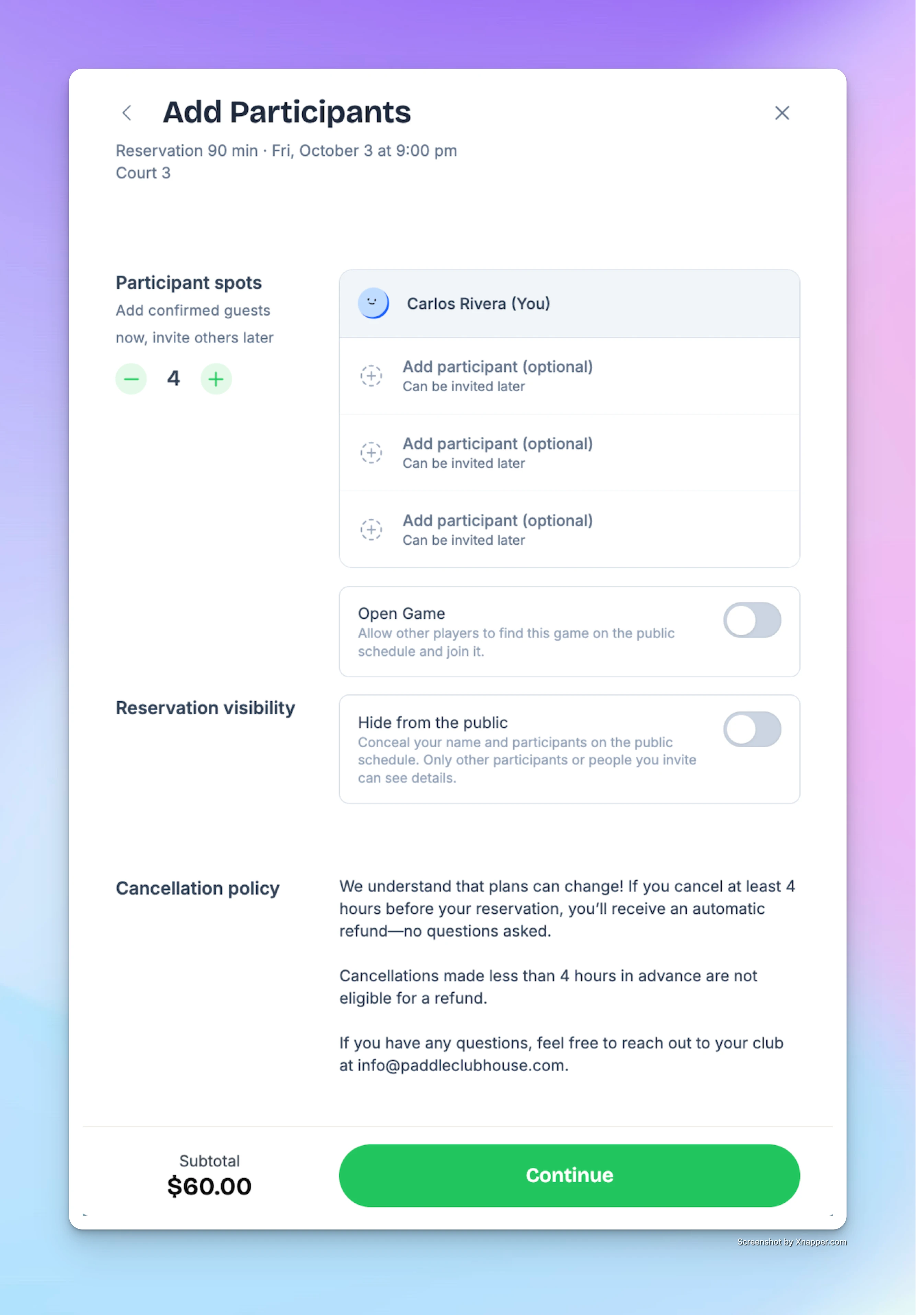
When a player books a reservation, they’ll see your cancellation policy (for example: 24 hours in advance).
-
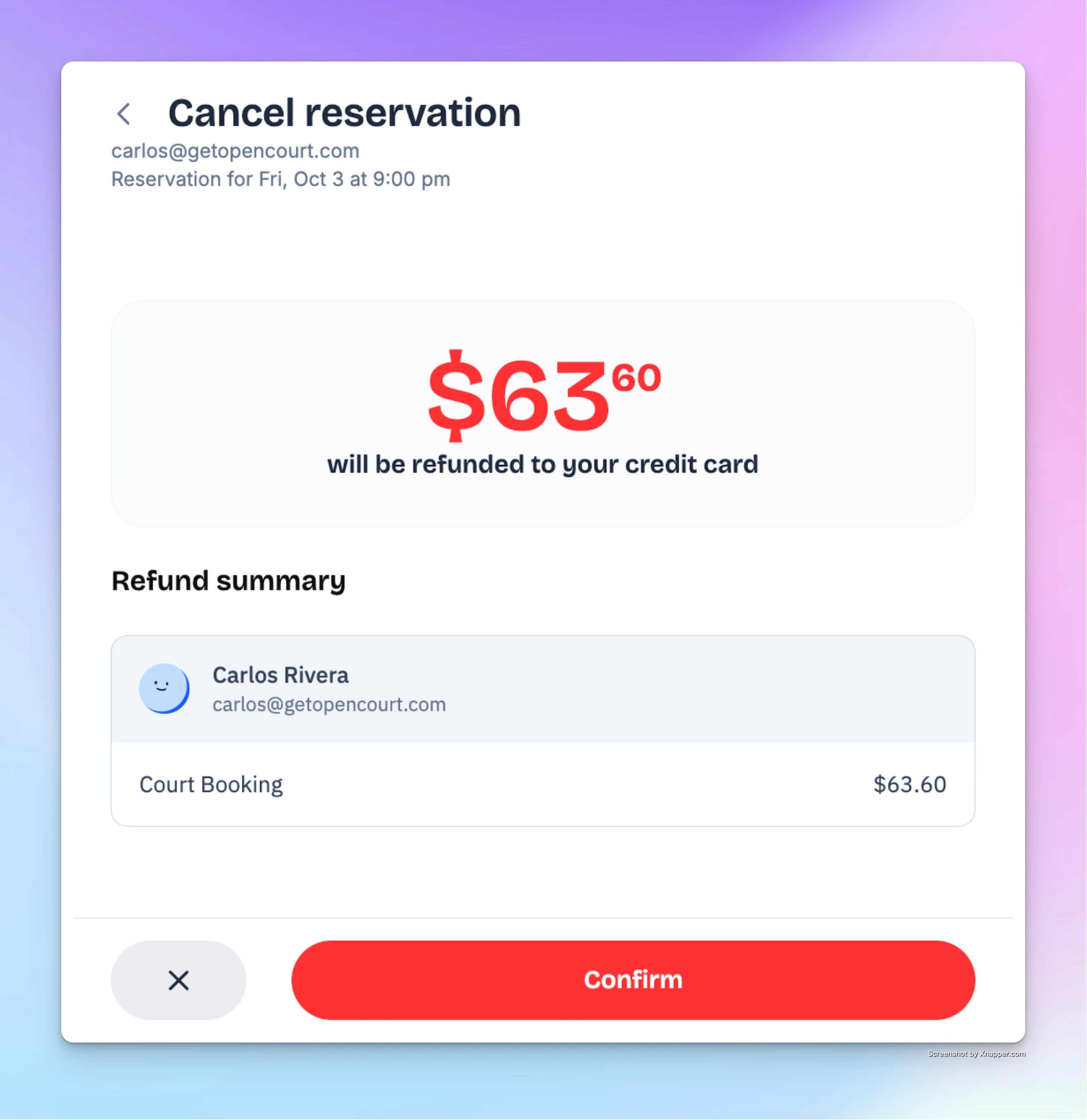
If they cancel at least x hours before the start time (depends on your cancellation policy), the system will:
-
Automatically refund the payment.
-
Send them a confirmation email.
-
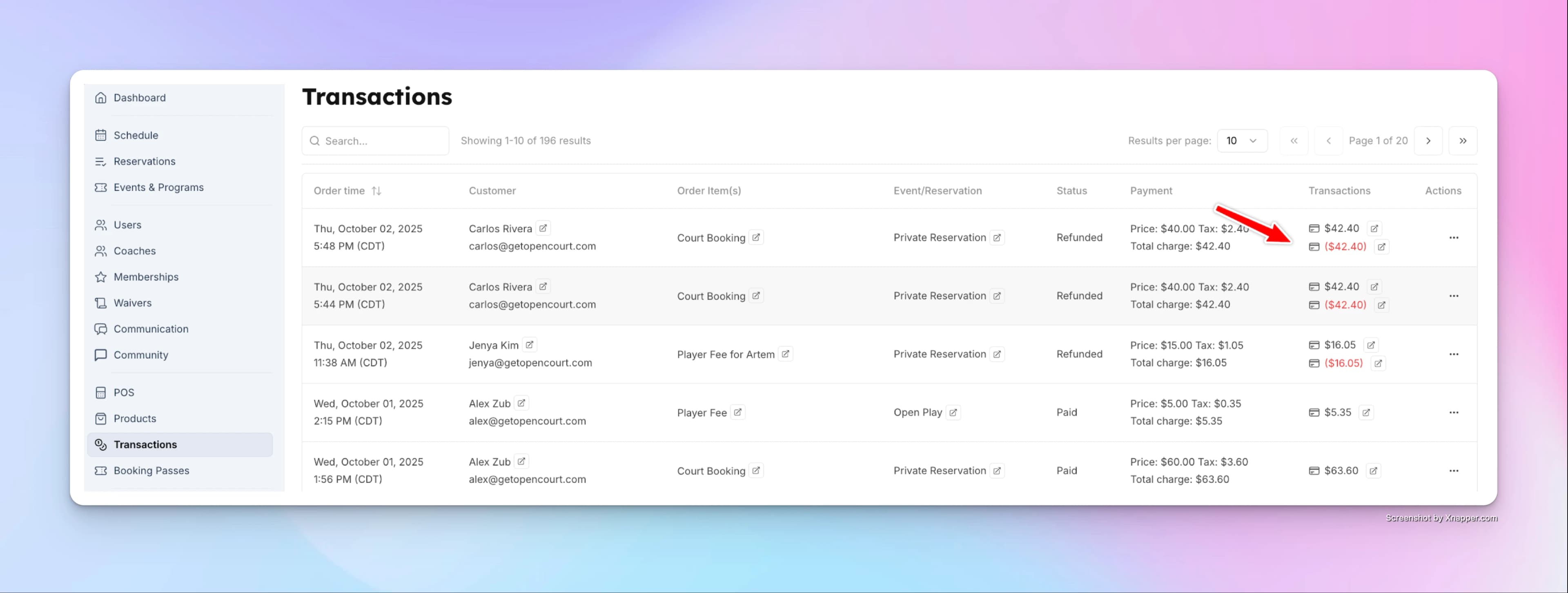
Mark the transaction as Refunded in your admin dashboard (with a red “Refunded” status line).
-
How Manual Refunds Work
If a player cancels less than x hours before the start time (depends on your cancellation policy), the system will not issue a refund automatically. However, admins can still process one manually if desired:
-
Go to the Transactions tab.
-
Find the reservation in the list.
-
Click the three dots under Actions.
-
Select Refund.
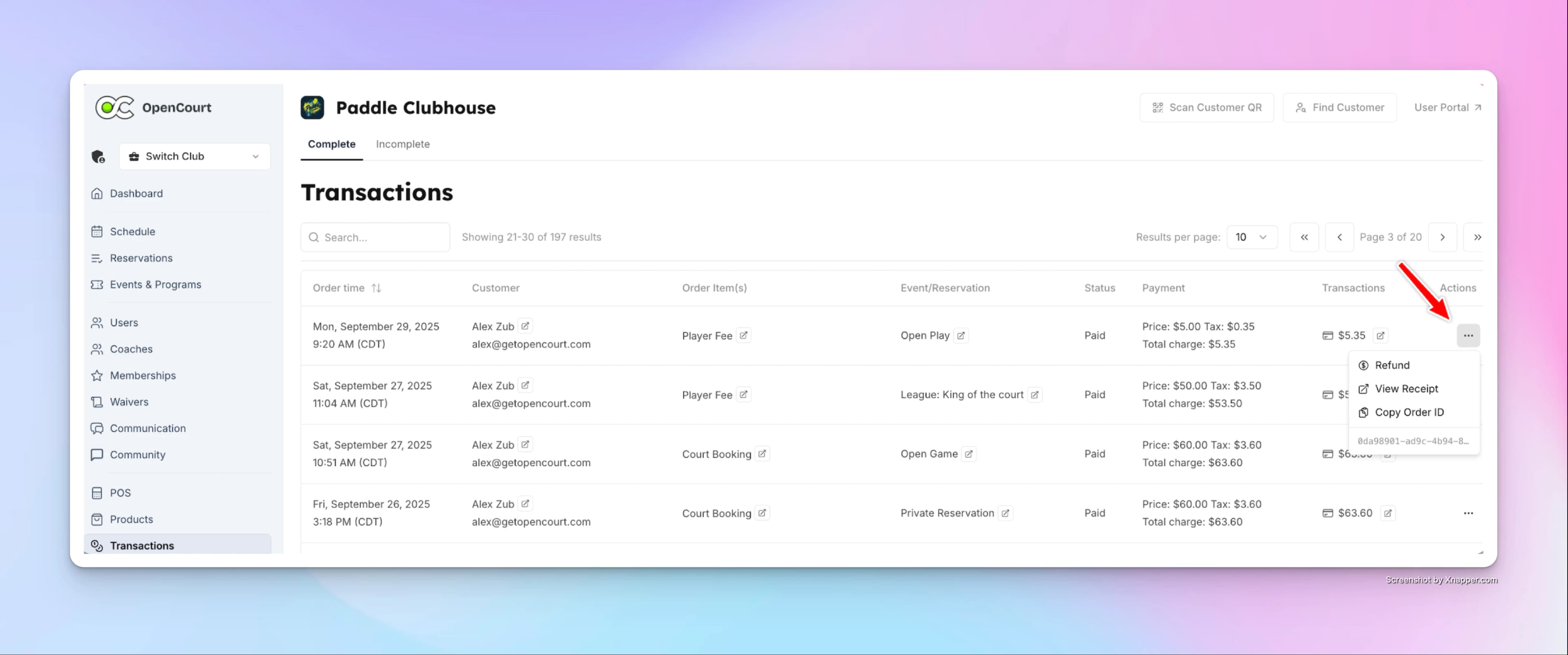
The refund will then be issued and recorded in the Transactions log.
Things to Keep in Mind
- The automatic refund window depends on the cancellation policy you’ve set (e.g., 24 hours, 48 hours, etc.).
- If your club’s policy is no refunds within 24 hours, only the automatic system applies—players won’t get a refund unless you issue one manually.
- All refunded transactions are clearly marked in red for easy tracking.
✅ With this setup, players have clarity on refunds, and admins stay in full control when exceptions need to be made.
Creating Events with Divisions
The Event Divisions feature lets you organize participants into groups within the same event—such as men’s and women’s brackets for a tournament, or different skill level brackets. This is especially useful when you want balanced participation or specific limits for each group.
Blocking Off Courts or Marking Time as Unavailable
Sometimes, clubs need to make certain courts temporarily unavailable — for maintenance, cleaning, internal use, or private activities. The Unavailable option lets you block off time without creating a visible event or sharing any details with players.